Schema Explorer
The Schema Explorer lets your teams quickly find the schema, understand who owns it, and who is producing or consuming it (see demo).
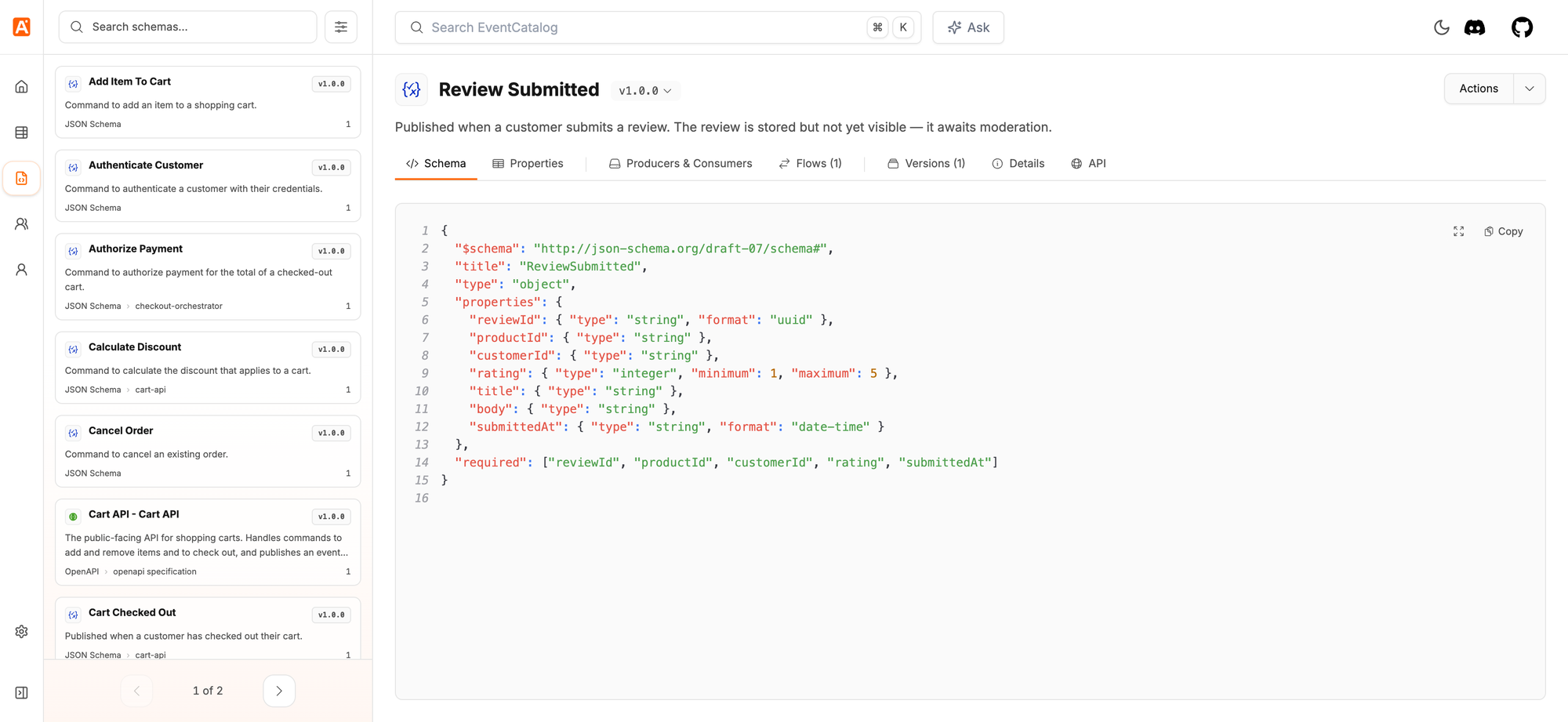
Using the Schema Explorer, you can:
- Quickly find schemas in your Architecture
- Read usage examples written by the team that owns the schema
- See who is producing or consuming a schema, and which flows it is part of
- Compare versions of your schemas
- See schema ownership and where the schema comes from
- Get API (GET) access to your schemas for mocking or testing
How to use the Schema Explorer?
You can access the Schema Explorer from the sidebar, or by going to the /schemas/explorer page.
The page will take all the schemas from your EventCatalog and render them in a searchable list. Select a schema to open it on the right.
You need to set the schemaPath in your schema frontmatter to the path to your schema file for Events, Queries and Commands.
For services you need to specify the path to your specification file in the specifications frontmatter.
Filters
Use the search box to find schemas by name. Select the filter button next to it to filter by type (events, commands, queries, or specifications) and by schema format.
Schema pages
Every message schema also has its own page at /schemas/{type}/{id}/{version}, for example /schemas/events/OrderCreated/1.0.0. Share this link when you want someone to look at one schema.
Schema tabs
eventcatalog@4.11.0Each schema is split into tabs. EventCatalog only shows a tab when there is something to show, for example the Flows tab only appears when the message is part of a flow.
| Tab | What it shows |
|---|---|
| Schema | The raw schema, with syntax highlighting and a copy button. |
| Properties | A readable view of the schema properties (JSON Schema, Avro and Protobuf). |
| Examples | Usage examples stored in the message's examples/ folder. |
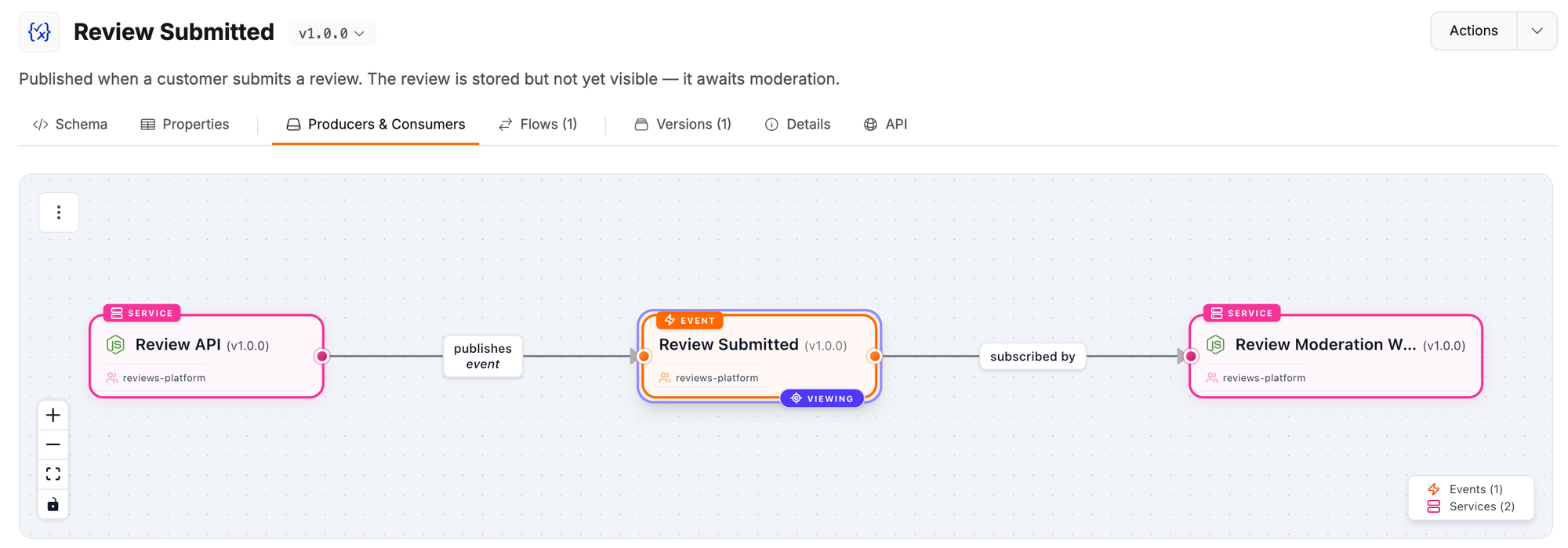
| Producers & Consumers | A graph of the services that produce and consume the message. |
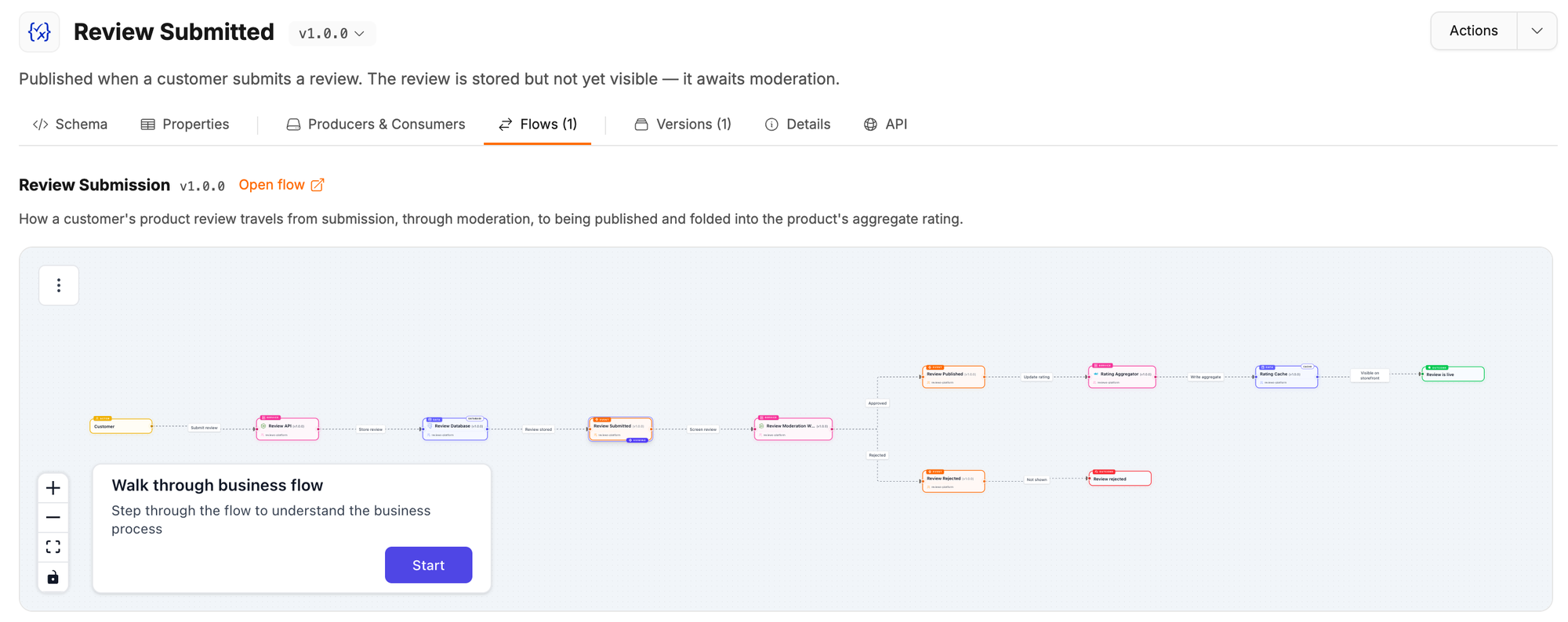
| Flows | The flows the message is part of. |
| Versions | Every version of the schema, with a side-by-side comparison. |
| Details | Schema metadata: format, version, file, source, and owners. |
| API | API access to the schema. |
Link to a tab
The selected tab is stored in the tab query parameter, so you can link straight to it.
/schemas/events/OrderCreated/1.0.0?tab=examples
| Tab | tab value |
|---|---|
| Schema | schema (default) |
| Properties | properties |
| Examples | examples |
| Producers & Consumers | producers-consumers |
| Flows | flows |
| Versions | versions |
| Details | details |
| API | api |
If the tab does not exist for that message, EventCatalog opens the Schema tab.
Examples
The Examples tab shows the examples your team has written for the message. Examples written in Markdown or MDX can explain the scenario and show code in several languages.
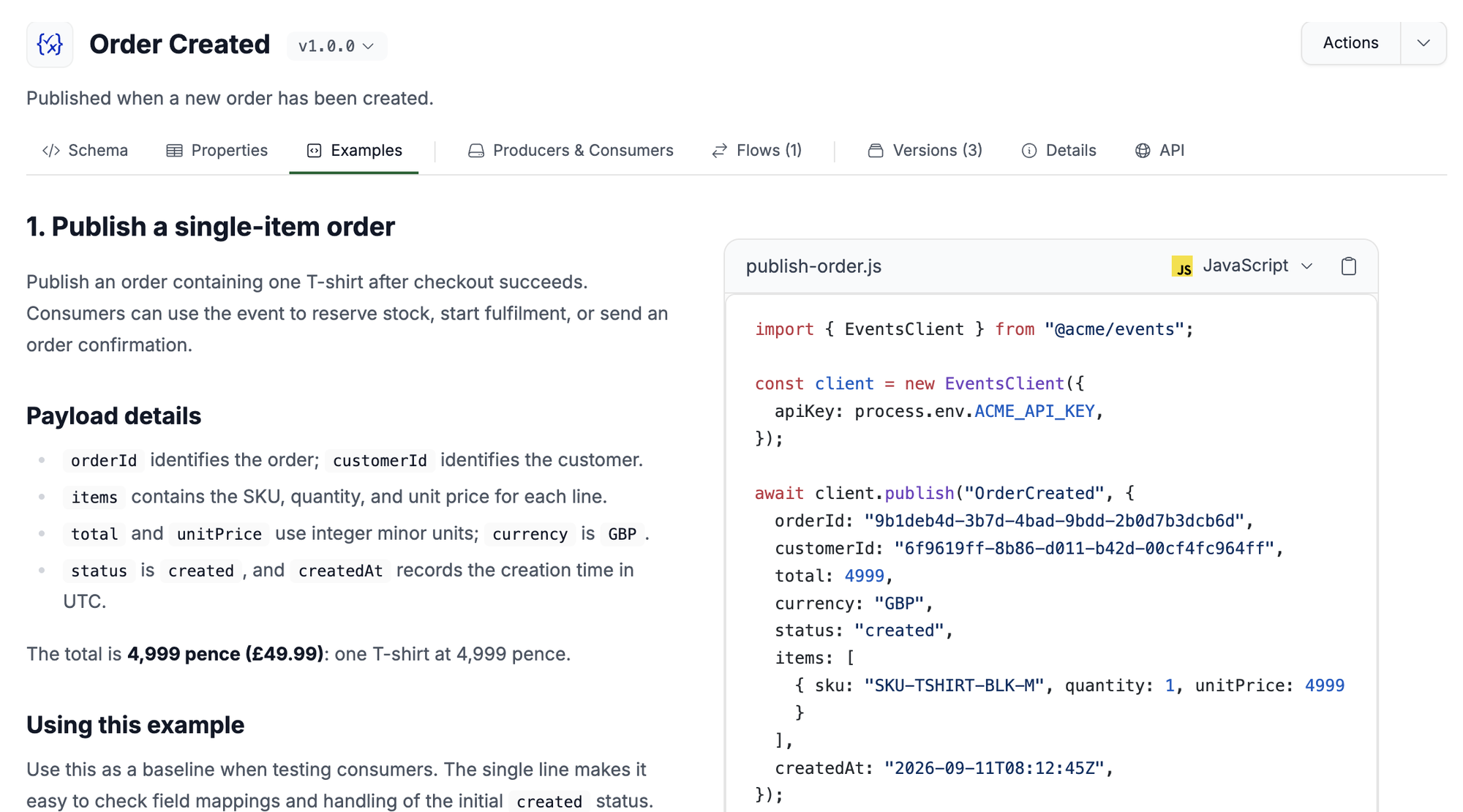
To add examples, see Add usage examples.
Producers and Consumers
The Producers & Consumers tab shows the services that produce and consume the message, using the same graph as the message page. Click on a producer or consumer to see more information about them.
Flows
The Flows tab shows the flows the message is part of. If the message is used in more than one flow, pick the flow from the dropdown. Use Open flow to go to the flow page.
Versions
The Versions tab lists every version of the schema. Select a version to view it, or pick a From and To version to compare them side by side. Use Expand to open the comparison in a larger view.
You can also switch versions from the version dropdown next to the schema name.
Details
The Details tab shows the schema name, format, message type, version, file, and owners. When a schema comes from an external source, the tab also shows where it came from.
API Access
You can get API (GET) access to your schemas for mocking or testing. See Schema API.