Collaborate on a canvas
Share a canvas
- On the canvas, choose Share.
- Choose Copy link, or Invite people to email an invite or copy an invite message.
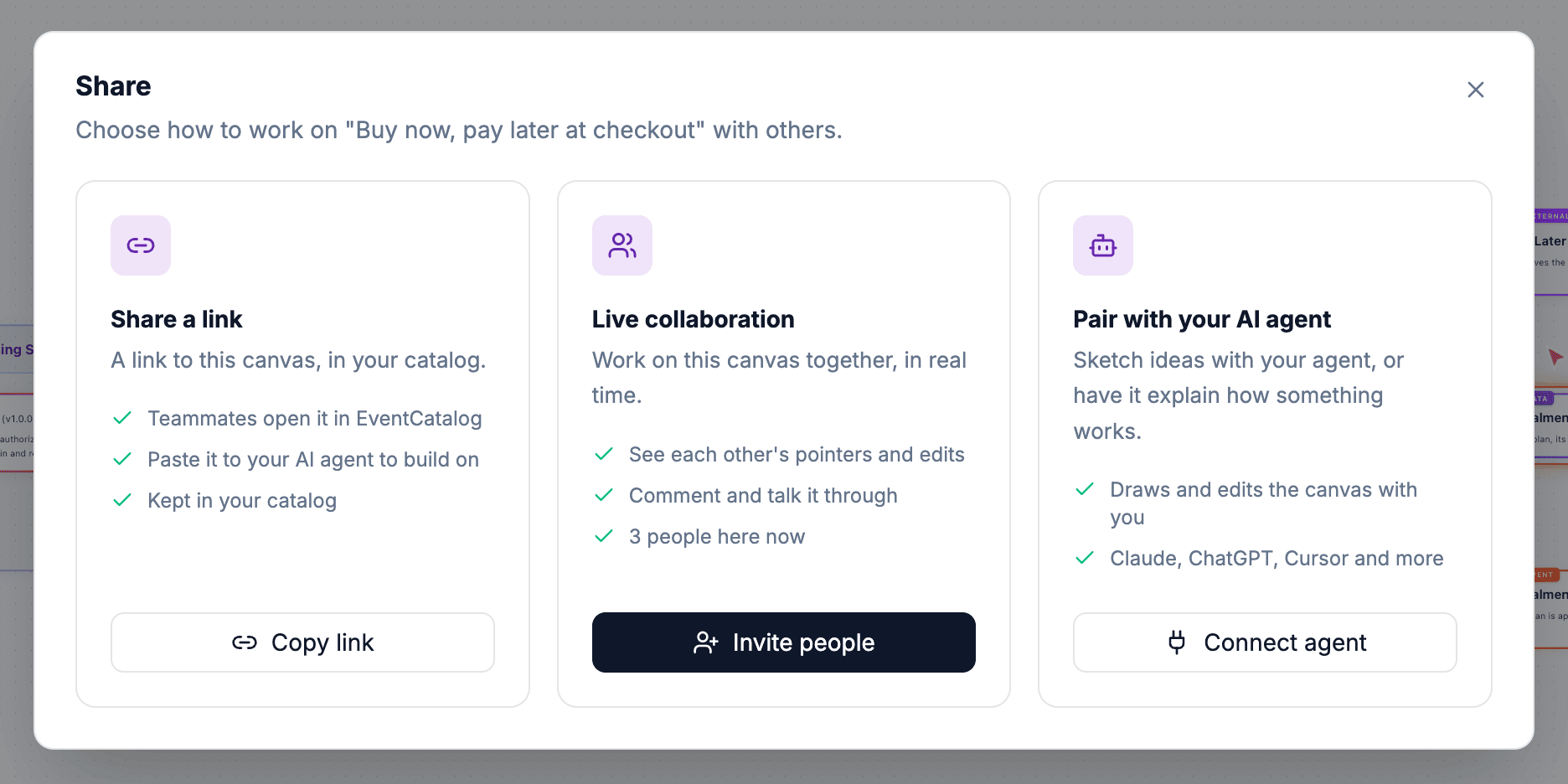
Anyone with the link opens the canvas in your catalog and edits it with you.
When authentication is on, only signed-in people can open canvases, and they appear with the name and picture they signed in with. Without authentication, Studio asks each person for a name, and keeps it in their browser.
Work on it live
Everyone on a canvas sees each other's pointers, names and changes as they happen. Changes save automatically.
- The avatars at the top right show who is on the canvas. Click one to jump to what that person is looking at.
- Click your own avatar to change your name and colour.
Comment
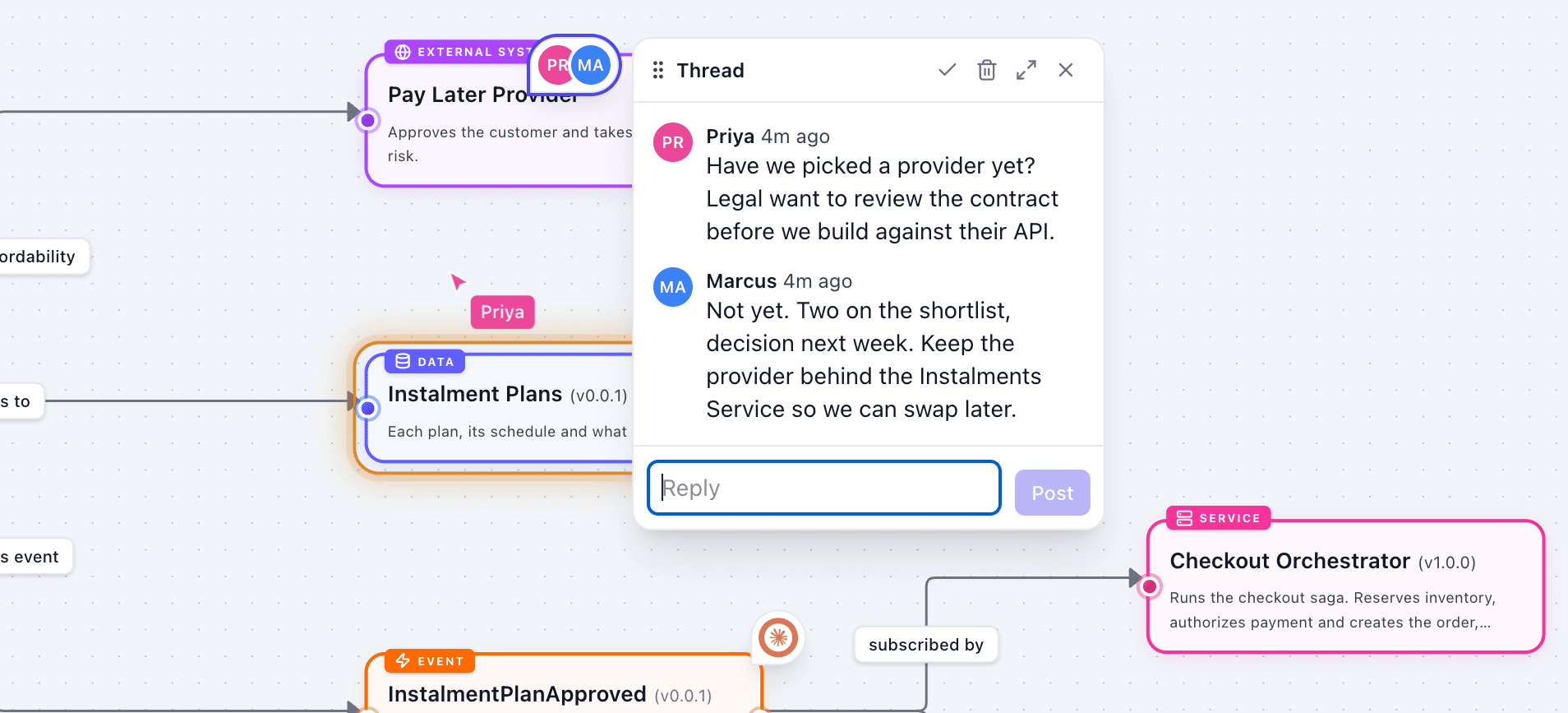
- Choose Comment in the toolbar, or press C.
- Click a node, or a spot on the canvas.
- Type your comment and press Enter.
Click a comment pin to reply. Choose Resolve when the thread is settled. Comments at the bottom of the canvas lists every thread.
Flag a risk with a hotspot
A hotspot flags a risk on a node or a spot, such as a single point of failure or data that needs a review.
- Choose Hotspot in the toolbar, or press A.
- Click the node at risk.
- Pick Critical, Warning or Info, and add a short title and, if you want, why it matters.
Click a marker to open its hotspot beside it. It shows the title, why it matters, and who flagged it and when. Edit or remove it from its header, or press Delete to remove it.
Hotspots at the bottom of the canvas lists every hotspot, most severe first, with the node it's on. Click a row, or rest the pointer on it, to go to that hotspot and open it. The list stays open, so you can work through them one by one.
At L1 and L2, hotspots inside a domain or system are shown on that domain or system, so zooming out never hides a risk. Deleting a node deletes its hotspots too.
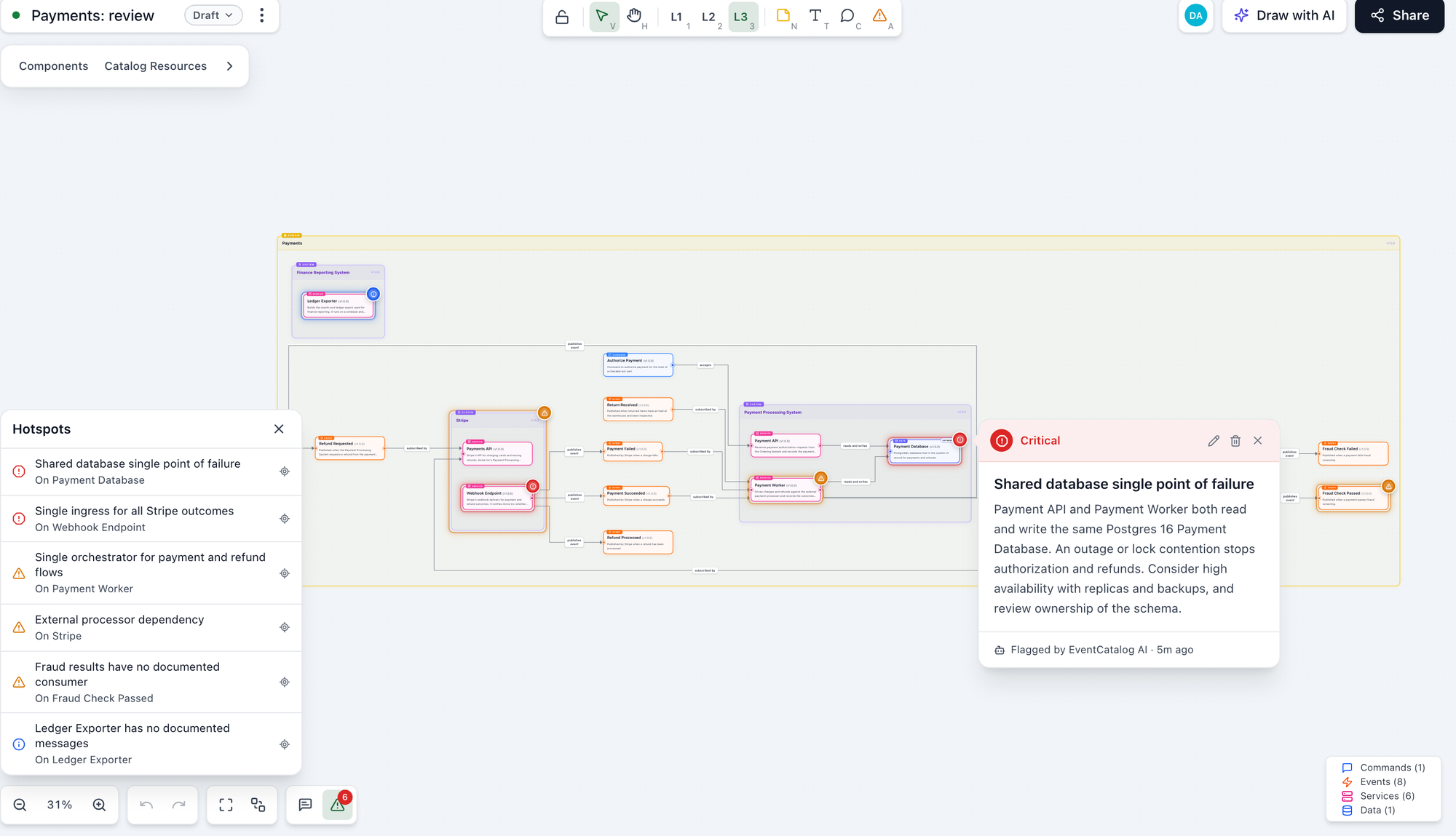
Ask the assistant to review a canvas with Draw with AI, and it flags what it finds with hotspots.
Add notes and text
- Sticky note (N): click where it goes and type. Use notes for assumptions, scope and open questions.
- Text (T): click anywhere and type. Use text for headings and labels.
Double-click a note or text to edit it.
Record the decision
Every canvas has a status: Draft, Proposed, Accepted or Rejected.
- Choose the status next to the canvas title.
- Add a note if you want, for example
Agreed in the architecture review. - Pick the new status.
The menu shows the history of status changes, with who made each change, when, and the note.
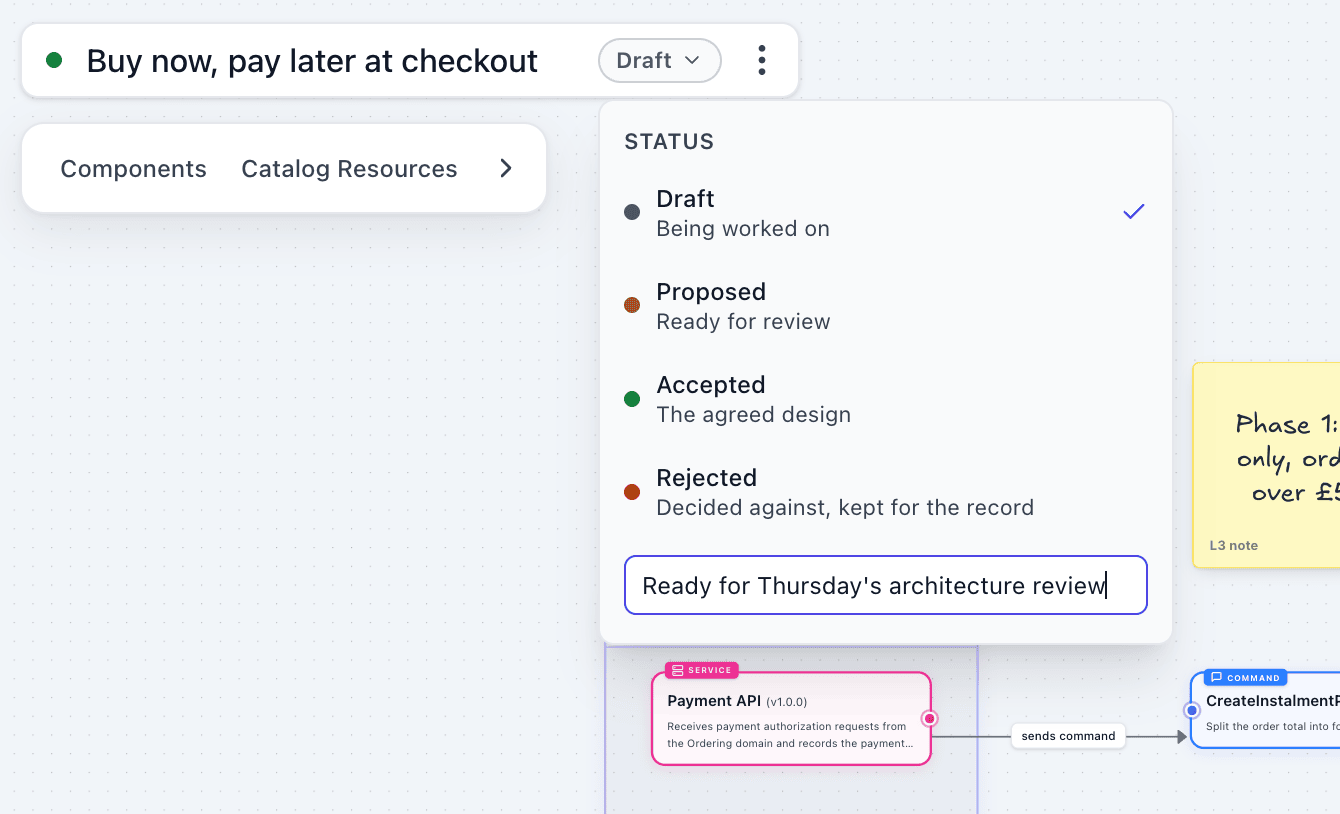
Changing the nodes or connections on an accepted or rejected canvas makes it a draft again, so a decision always matches the design it was made on.
To find designs waiting for review, open Studio and filter by Proposed.
Lock the canvas
Choose the lock in the toolbar. Everyone can still look at the canvas, but no one can change it until it is unlocked.