Using mermaid
EventCatalog supports mermaid (v11.x) in all your markdown files.
This let's you create Class Diagrams, Sequence Diagrams, Entity Relationship Diagrams, Architecture Diagrams and much more.
Using mermaid in EventCatalog
There are two ways to use mermaid in EventCatalog.
- Using the
mermaidcode block in any markdown file. - Using Mermaid files
.mmdand.mermaidfiles and loading them into your EventCatalog page.- Added in EventCatalog 2.56.4
If you have large diagrams that fail to render, increase the maxTextSize configuration value. Learn more about maxTextSize configuration.
Using the mermaid code block in any markdown file.
To use mermaid you need to use the mermaid code block in any markdown file. You can pass placement and actions on the code fence to configure the interactive controls.
Example
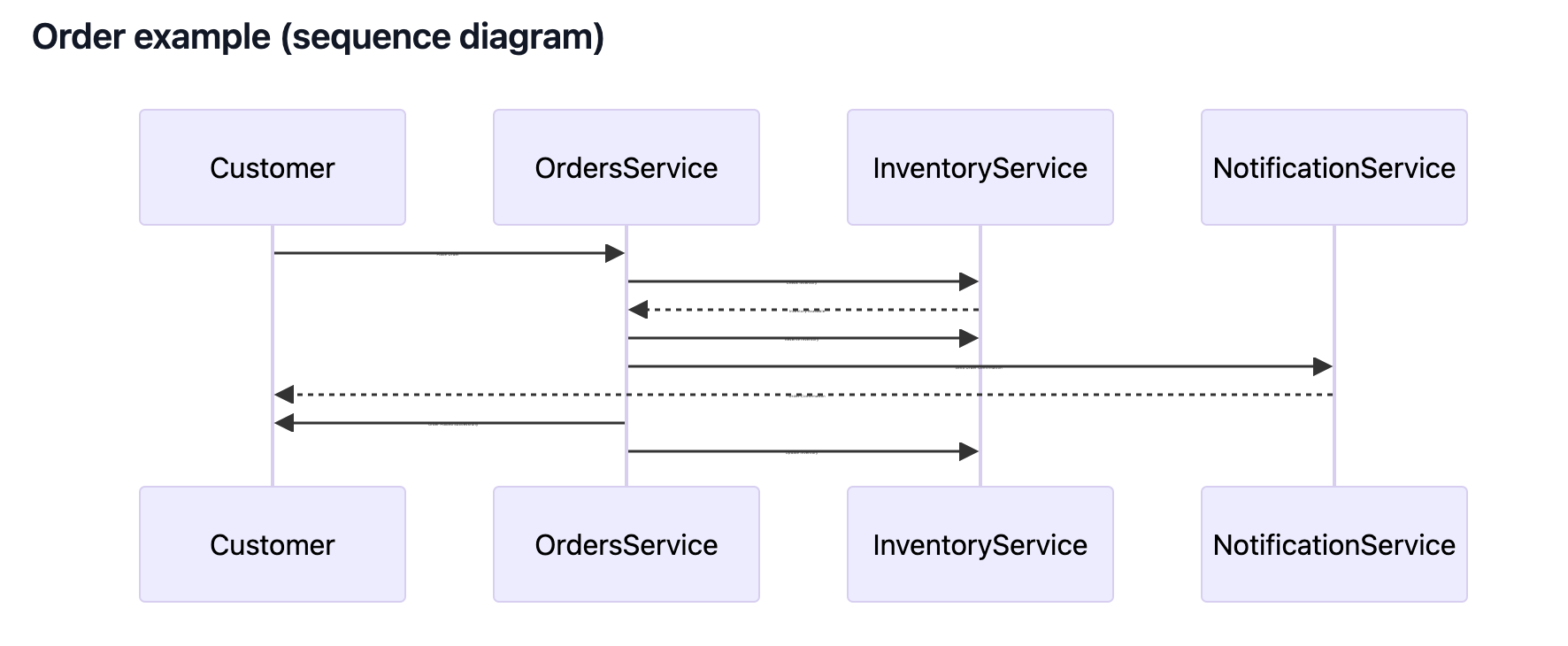
```mermaid
sequenceDiagram
    participant Customer
    participant OrdersService
    participant InventoryService
    participant NotificationService

    Customer->>OrdersService: Place Order
    OrdersService->>InventoryService: Check Inventory
    InventoryService-->>OrdersService: Inventory Available
    OrdersService->>InventoryService: Reserve Inventory
    OrdersService->>NotificationService: Send Order Confirmation
    NotificationService-->>Customer: Order Confirmation
    OrdersService->>Customer: Order Placed Successfully
    OrdersService->>InventoryService: Update Inventory
```_
This example will output the following in the markdown file.
Loading Mermaid files into your EventCatalog page.
eventcatalog@2.56.4You can load Mermaid files using the <MermaidFileLoader /> component, if you prefer to use a file instead of a code block.
Add your .mmd or .mermaid file to your folder (e.g /events/MyEvent/mermaid.mmd)
---
#event frontmatter
---

<!-- Using the .mmd file extension -->
<MermaidFileLoader file="mermaid.mmd" />

<!-- Using the .mermaid file extension -->
<MermaidFileLoader file="my-second-mermaid-file.mermaid" />

<!-- Optional: configure interactive controls -->
<MermaidFileLoader file="mermaid.mmd" placement="top-left" actions={false} />
This example will load a mermaid file (.mmd or .mermaid) into your EventCatalog page.
The file must be in the same directory as the markdown file.
Architecture diagrams with mermaid
eventcatalog@2.18.0Mermaid 11 introduced the ability to create architecture diagrams.
You can use these diagrams to document your architecture.
Example
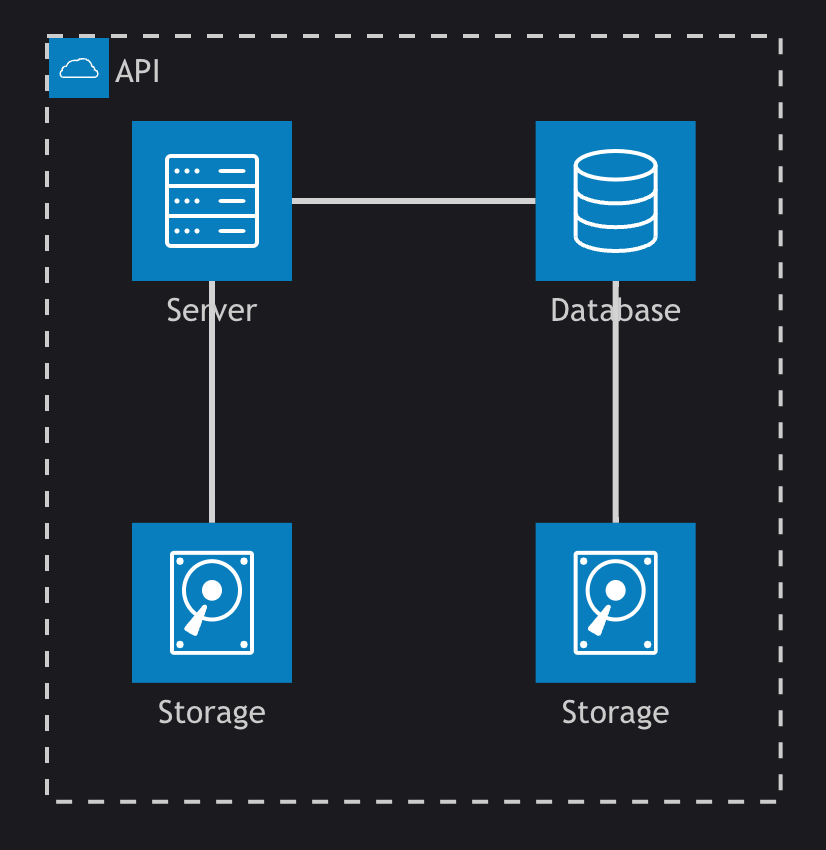
```mermaid
architecture-beta
    group api(cloud)[API]

    service db(database)[Database] in api
    service disk1(disk)[Storage] in api
    service disk2(disk)[Storage] in api
    service server(server)[Server] in api

    db:L -- R:server
    disk1:T -- B:server
    disk2:T -- B:db

```_
This example will output the following in the markdown file.
Architecture diagrams with icons
eventcatalog@2.18.0EventCatalog supports over 200,000 icons from icones.js.org.
To add icon support you need to add the icon pack into your eventcatalog.config.js file.
// eventcatalog.config.js
mermaid: {
  iconPacks: ['logos'] // will load https://icones.js.org/collection/logos into eventcatalog
}
In this example above we import the icon pack logos from icones.js.org, but you can import any icon pack you like from icones.js.org.
To use the icons in your mermaid diagrams you need to prefix the icon name with pack name.
In this example we are using the logos pack, so we prefix the icon name with logos:.
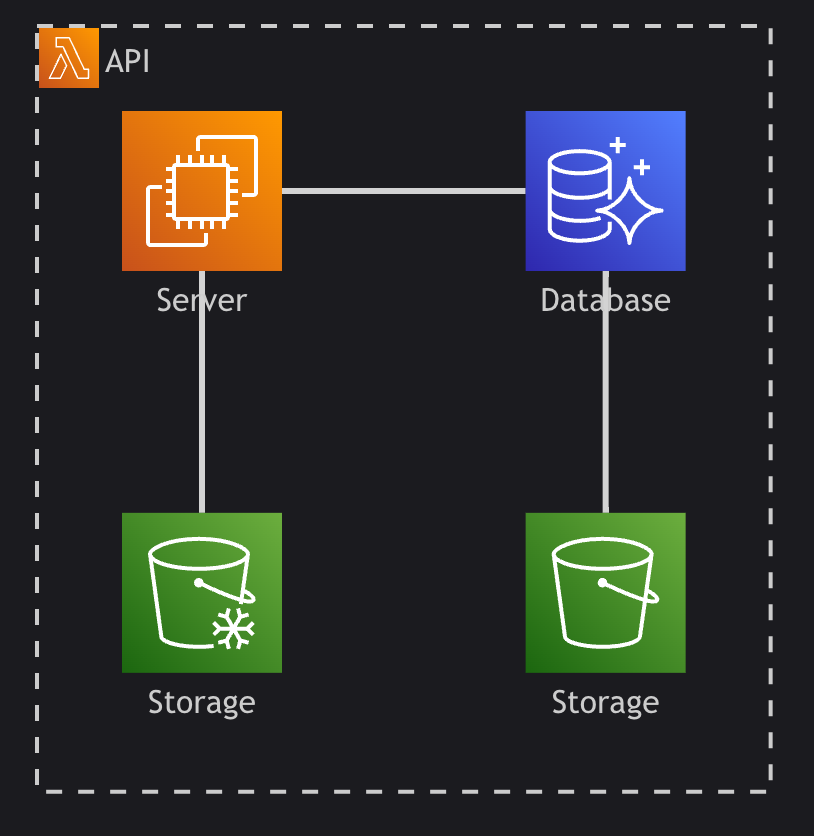
```mermaid
architecture-beta
    group api(logos:aws-lambda)[API]

    service db(logos:aws-aurora)[Database] in api
    service disk1(logos:aws-glacier)[Storage] in api
    service disk2(logos:aws-s3)[Storage] in api
    service server(logos:aws-ec2)[Server] in api

    db:L -- R:server
    disk1:T -- B:server
    disk2:T -- B:db
```_
EventCatalog will then import the icons from the icon pack and render them in the diagram.
Mermaid with ELK (Eclipse Layout Kernel) layout algorithm
eventcatalog@2.61.2EventCatalog supports the ELK (Eclipse Layout Kernel) layout algorithm for mermaid diagrams.
To add support for the ELK layout algorithm you need to add the following to your eventcatalog.config.js file.
// eventcatalog.config.js
mermaid: {
  // default value is false
  enableSupportForElkLayout: true
}
After you set the value, mermaid will be configured to use the ELK layout algorithm.
Interactive controls
eventcatalog@3.4.1All Mermaid diagrams include interactive controls for better viewing and exploration.
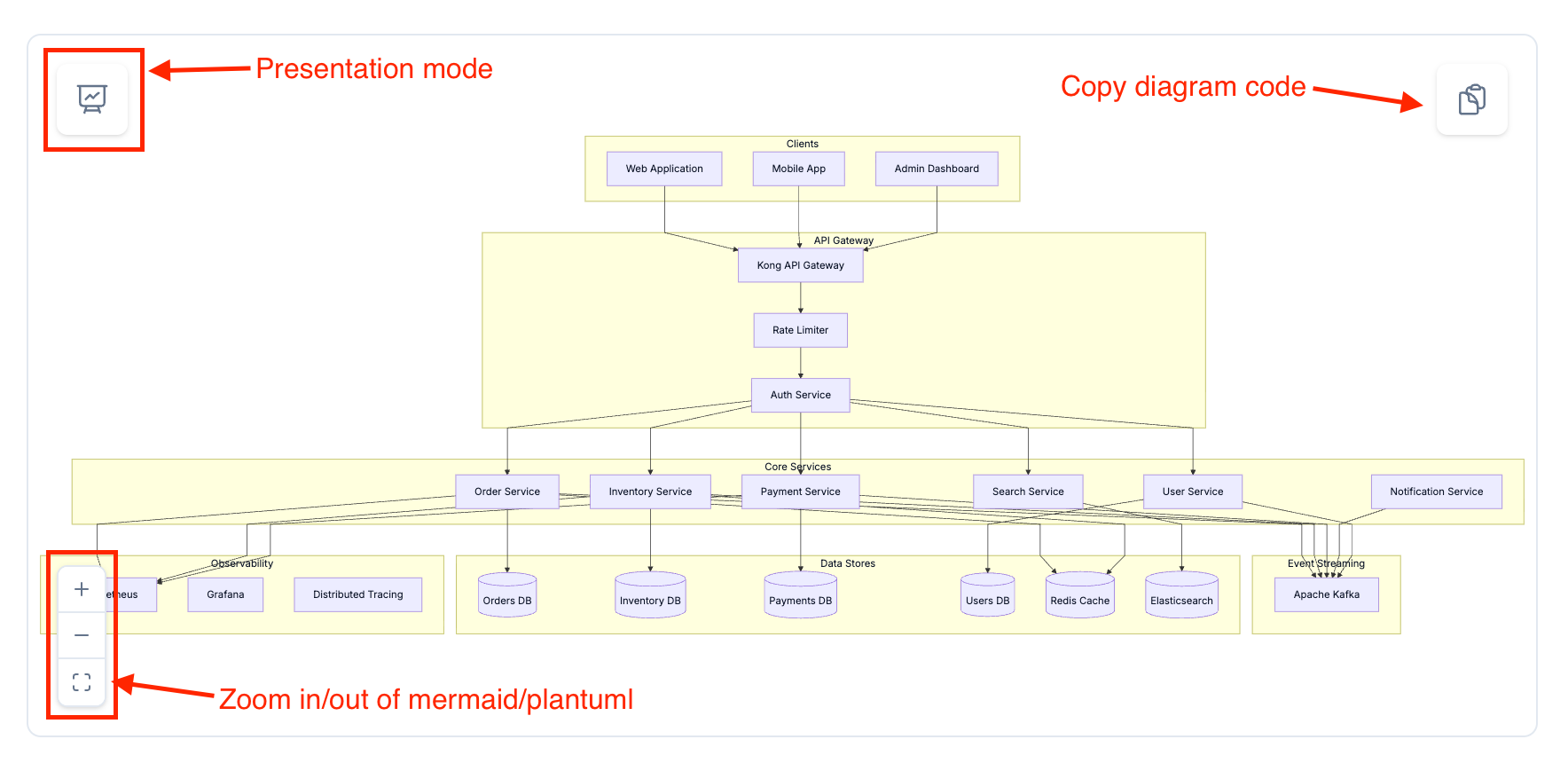
Pan, zoom, reset, fullscreen, and copy controls appear on hover. On touch devices the controls stay visible.
Zoom and pan
Click and drag to pan around the diagram, or use the pan and zoom buttons to move around. Double-click the diagram to zoom in quickly. Use reset to fit the diagram back into view.
Fullscreen
Click the fullscreen button to open the diagram in a modal. In fullscreen you can drag, scroll, or pinch to zoom.
Keyboard shortcuts in fullscreen:
- Arrow keys to pan
+/-to zoom0to resetEscapeto close
Copy diagram code
Click the copy button to copy the diagram code to your clipboard.
Useful for copying diagrams into LLM prompts.
Control options
eventcatalog@4.10.6Code blocks and <MermaidFileLoader /> accept placement and actions to configure the controls.
| Name | Type | Default | Description |
|---|---|---|---|
placement (optional) | 'top-left' | 'top-right' | 'bottom-left' | 'bottom-right' | 'top-right' | Corner for the interactive controls. |
actions (optional) | boolean | shown when the diagram is taller than 120px | true always shows the controls. false hides them. |
Code block
Pass the options on the mermaid code fence. placement accepts double or single quotes. actions accepts {true} / {false} or true / false.
```mermaid placement="top-left" actions={false}
sequenceDiagram
    participant Customer
    participant OrdersService
    Customer->>OrdersService: Place Order
```_
MermaidFileLoader
<MermaidFileLoader file="mermaid.mmd" placement="top-left" actions={false} />
Export NodeGraphs as Mermaid
eventcatalog@3.9.0EventCatalog can export any NodeGraph visualization as Mermaid diagram code.
Click the view switcher dropdown in any NodeGraph and select "Copy as Mermaid" to copy the diagram to your clipboard. The exported diagram preserves all nodes, edges, labels, and styling.
You can then paste the Mermaid code into:
- LLM prompts for architecture discussions
- Other documentation tools
- mermaid.live for further editing
- Mermaid code blocks in EventCatalog pages
Read more about NodeGraph controls
More resources
- Mermaid documentation - Learn more about mermaid and how to use it
- Icon packs - Explore over 200,000 icons from iconify