Create an event
In this step, you will document the first event in your catalog and add a schema for its payload.
An event describes something that has happened. In this tutorial, the first event is OrderPlaced. It tells other systems that a customer has placed an order.
In this chapter...
Here are the topics we'll cover
- Create an event folder inside OrderService.
- Add the event metadata and a short description.
- Add a JSON schema and render it on the event page.
- Open the event in EventCatalog.
Create the event folder
From the root of your catalog, create an event folder inside OrderService:
mkdir -p services/OrderService/events/OrderPlaced
This keeps the event close to the service that publishes it. You can also put events in a top-level events folder, but service-owned events are a useful place to start when you are learning.
Add the event page
Create a new file at services/OrderService/events/OrderPlaced/index.mdx:
---
id: OrderPlaced
name: Order Placed
version: 0.0.1
summary: |
  Raised when a customer places an order.
schemaPath: schema.json
---

## Overview

The Order Placed event is raised after a customer completes checkout.

Other systems can use this event to start work that depends on the order, such as fulfilment, inventory allocation, or customer notifications.

## Schema

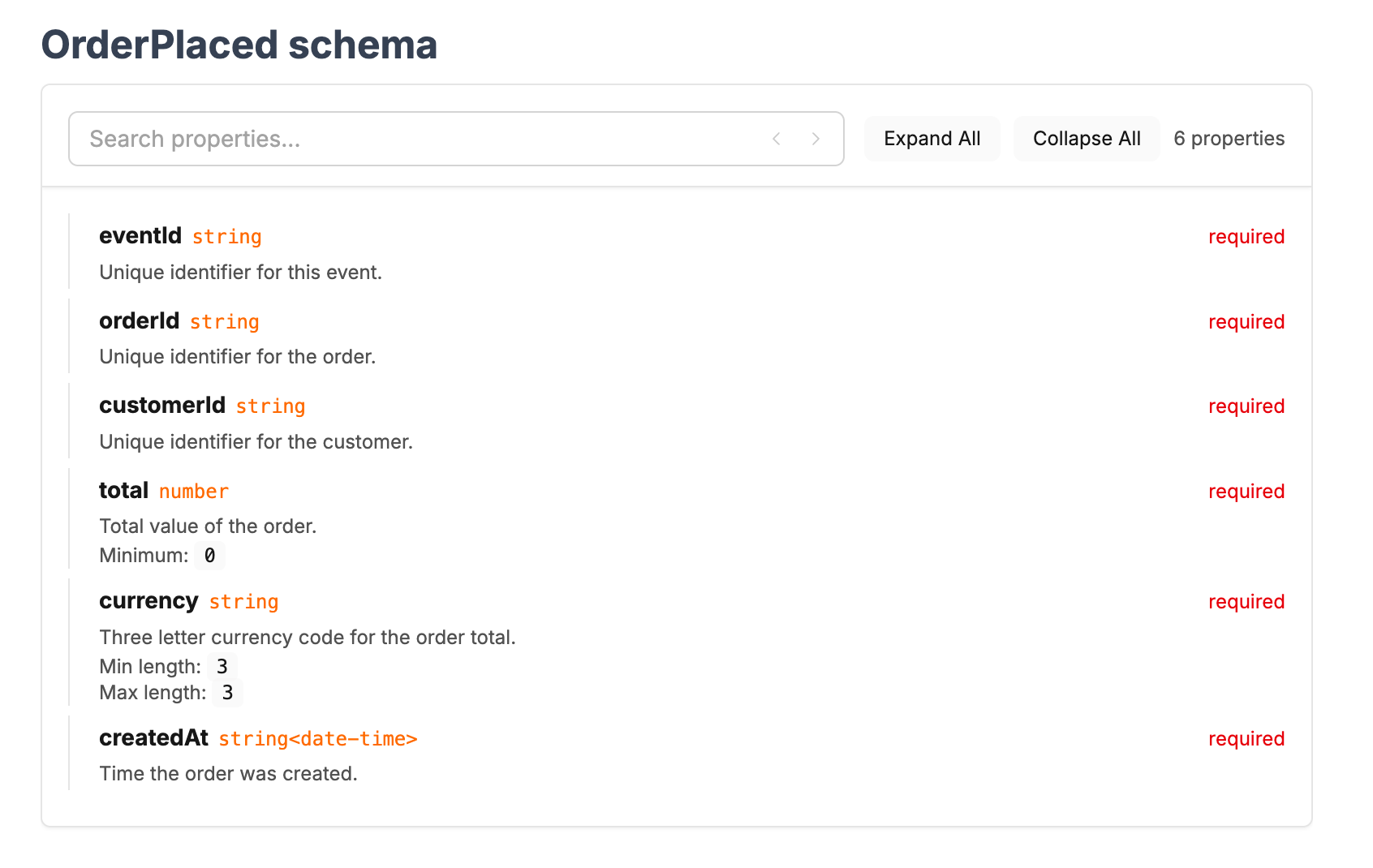
<SchemaViewer file="schema.json" title="OrderPlaced schema" maxHeight="500" search="true" />
Keep the event focused on what happened and why it matters. The important part is the frontmatter at the top of the file:
idis the stable identifier EventCatalog uses for links and references.nameis the label people see in the UI.versionis the version of this event.summaryis a short description shown in event lists and page headers.schemaPathtells EventCatalog which schema belongs to this event.
Add the schema file
The event page explains the meaning of the event. The schema explains the shape of the payload.
EventCatalog supports any schema format. In this tutorial, you will add a JSON schema.
EventCatalog has many integrations and can sync schemas directly from your registry into the catalog. In this tutorial, you will manually create the schema, but you can set up a registry integration later.
Create schema.json in the same folder as the event:
{
  "$schema": "https://json-schema.org/draft/2020-12/schema",
  "$id": "https://example.com/schemas/order-placed.json",
  "title": "OrderPlaced",
  "type": "object",
  "additionalProperties": false,
  "required": ["eventId", "orderId", "customerId", "total", "currency", "createdAt"],
  "properties": {
    "eventId": {
      "type": "string",
      "description": "Unique identifier for this event."
    },
    "orderId": {
      "type": "string",
      "description": "Unique identifier for the order."
    },
    "customerId": {
      "type": "string",
      "description": "Unique identifier for the customer."
    },
    "total": {
      "type": "number",
      "minimum": 0,
      "description": "Total value of the order."
    },
    "currency": {
      "type": "string",
      "minLength": 3,
      "maxLength": 3,
      "description": "Three letter currency code for the order total."
    },
    "createdAt": {
      "type": "string",
      "format": "date-time",
      "description": "Time the order was created."
    }
  }
}
Show the schema on the event page
The event page already includes the SchemaViewer component:
<SchemaViewer file="schema.json" title="OrderPlaced schema" maxHeight="500" search="true" />
SchemaViewer renders schemas in a more readable way than a plain code block.
Check the event in EventCatalog
Refresh EventCatalog in your browser. You should now be able to find OrderPlaced in your catalog at http://localhost:3000/docs/events/OrderPlaced/0.0.1.
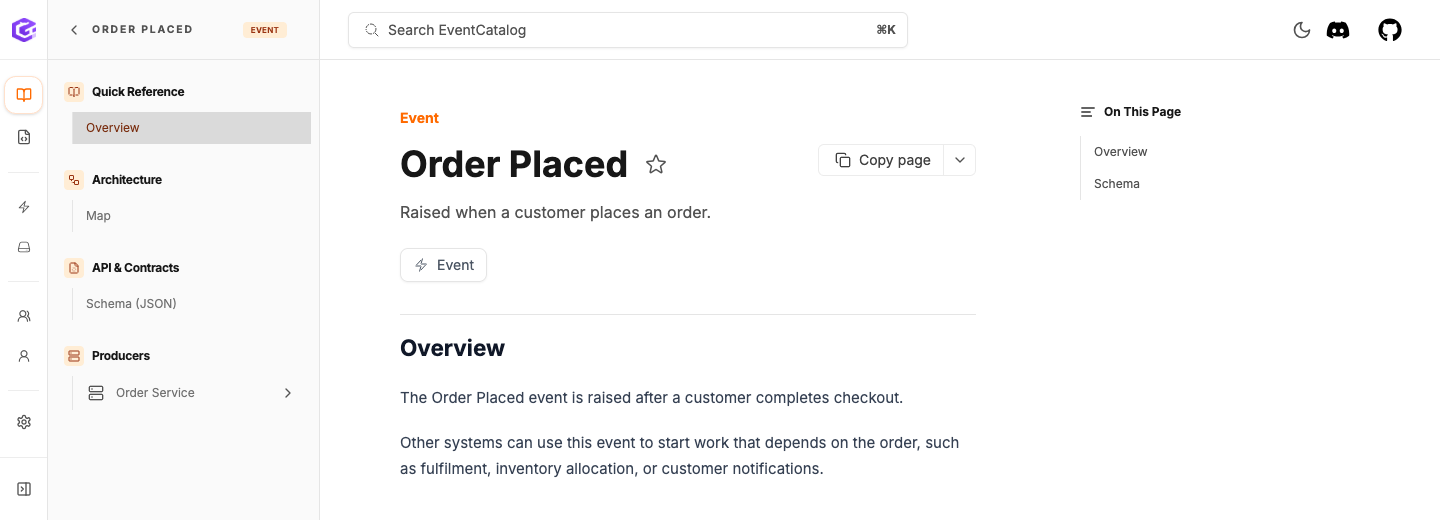
The schema should also render on the event page.
What you have now
Your catalog now has:
services/OrderService/events/OrderPlaced/index.mdxservices/OrderService/events/OrderPlaced/schema.json- a
SchemaViewerblock that renders the schema in EventCatalog
Next
Continue to Publish the event from a service.