Add ADRs to resources
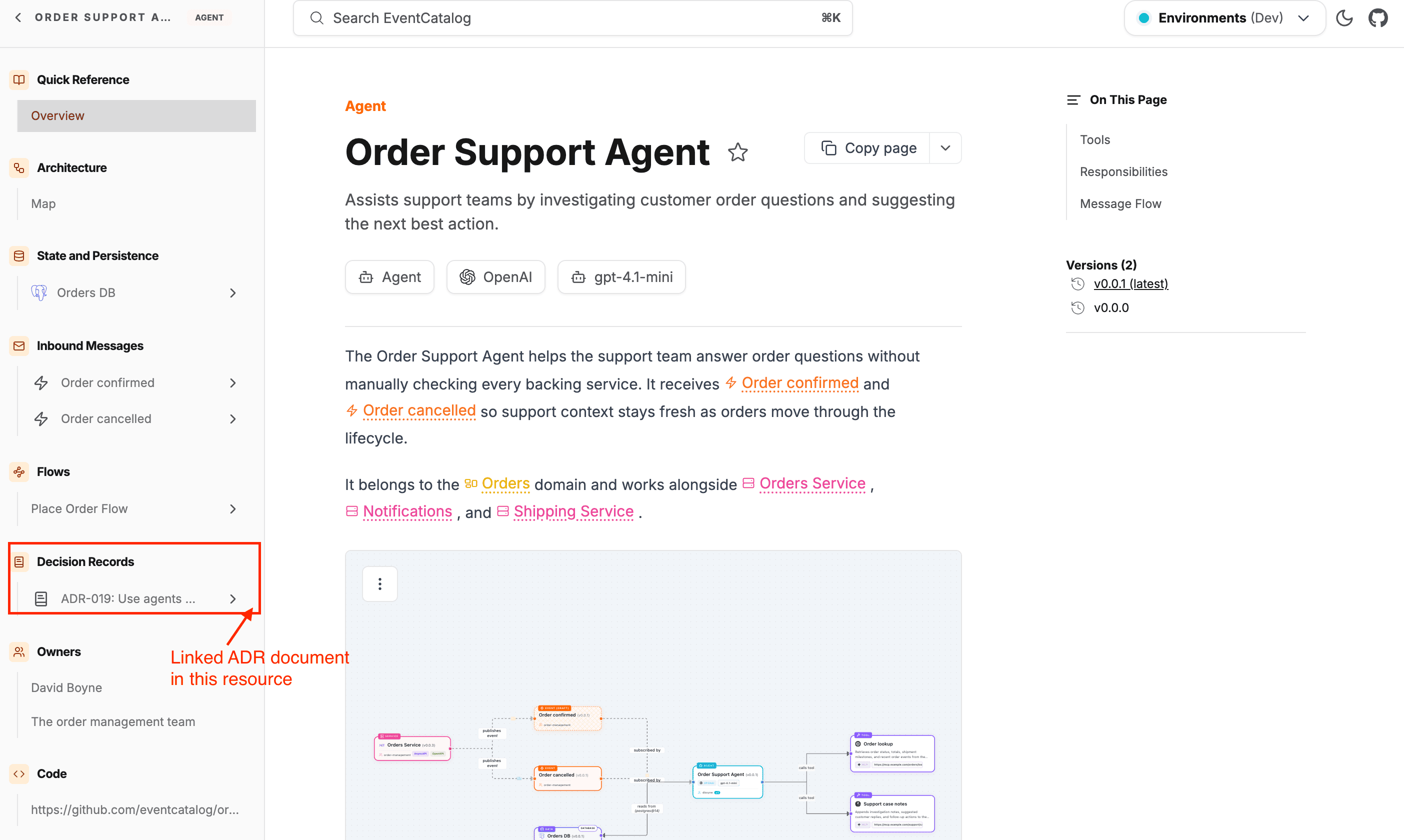
Use appliesTo to connect an ADR to the catalog resources it affects. When resources are linked, the ADR appears in the Decision Records section of each resource's sidebar.
Use appliesTo
Add an appliesTo array to the frontmatter, specifying the type and id of each affected resource.
appliesTo:
  #  ADR will apply to the Orders Domain
  - type: domain
    id: Orders
  # ADR will apply to the PaymentService
  - type: service
    id: PaymentService
  # ADR will apply to the PaymentAccepted event
  - type: event
    id: PaymentAccepted
Pin to a specific version
By default, EventCatalog resolves the link to the latest version of the resource. Add a version field to pin to a specific version.
appliesTo:
  - type: service
    id: PaymentService
    version: 1.0.0
  - type: event
    id: OrderConfirmed
    version: latest   # explicit, same as omitting version
How it appears in the UI
When a resource has one or more ADRs linked via appliesTo, a Decision Records group appears in that resource's sidebar. Each linked ADR shows its name and links directly to the decision page.
This means engineers reading a service or event page can immediately see which architectural choices affect it, without leaving the page.
On the Resources page
eventcatalog@5.0.0Linked ADRs are also listed on the resource's Resources page (Quick Reference > Resources in the sidebar), with the relationship Governed by. When the page lists other kinds of resource too, use the Decision Records filter to show only the ADRs. This works for domains, systems, services, flows, channels, events, commands and queries.
See the service Resources page for how the page works.