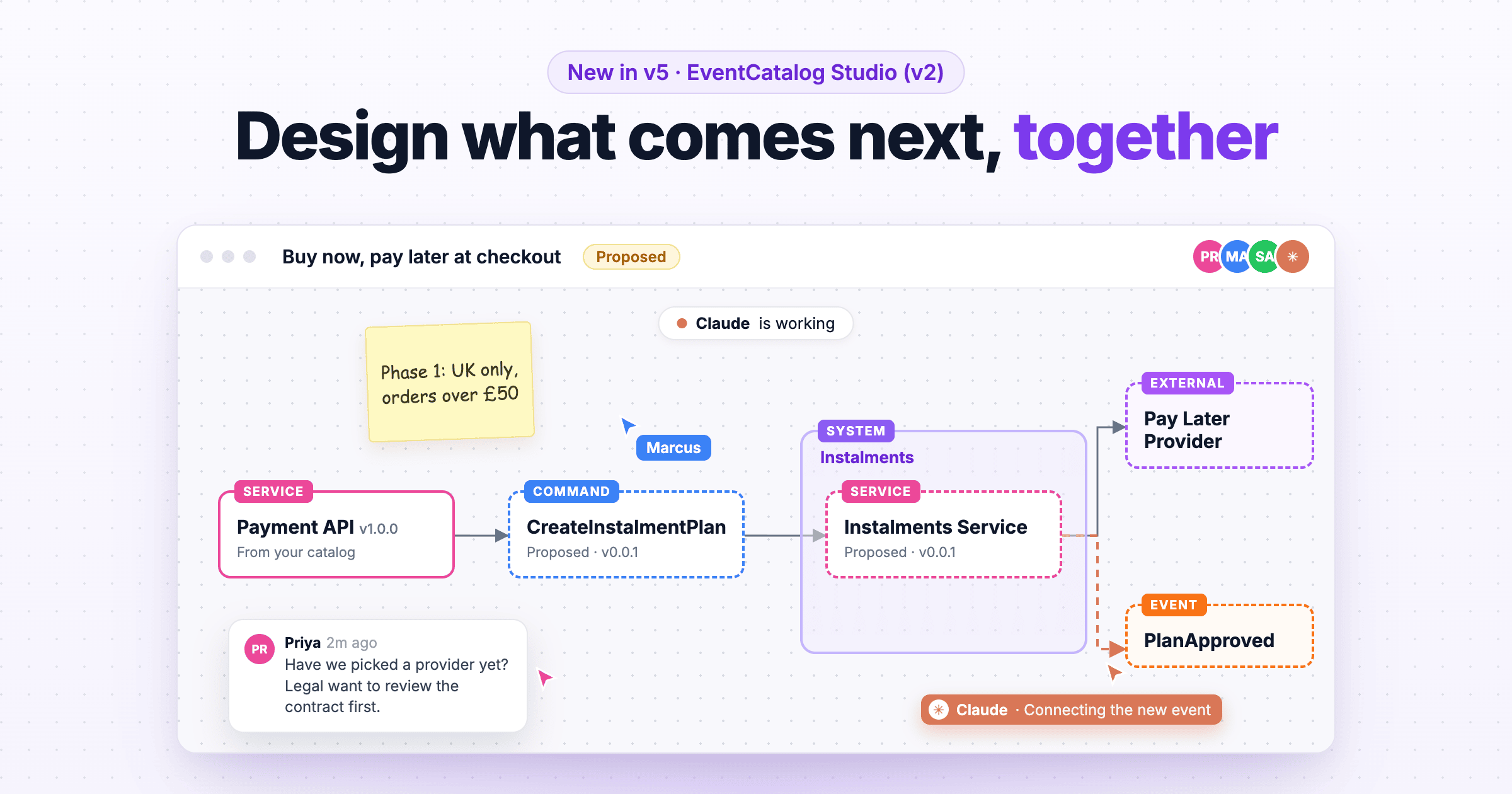
EventCatalog Studio (v2) brings live, collaborative canvases into your catalog. Drag in the services, messages and domains you already document, sketch what comes next, and comment and review it with your team in real time. AI agents can join the same canvas through the MCP server and edit it with you.
EventCatalog is good at telling you how your architecture works today. Your teams document their domains, services and messages, and everyone can find out what talks to what.
But the conversations that matter most are often about tomorrow. "How would we add buy now, pay later?" "What happens if we split the Order Service?" "Who needs to know if we retire this API?"
Those conversations usually happen somewhere else: a whiteboard, a slide, a diagram tool that knows nothing about your architecture. Someone redraws the services by hand, gets a few of them wrong, and the result ends up in a folder nobody opens again.
We kept hearing the same thing from customers: we document the present in EventCatalog, but we plan the future somewhere else.
Today we're excited to introduce EventCatalog Studio (v2): live, collaborative canvases inside your catalog, for designing what comes next with your team and your AI agents.
The first version of EventCatalog Studio was a separate tool for drawing designs with architecture primitives. Studio v2 lives inside EventCatalog itself, so your designs start from the architecture you already document, and your team and your agents can work on them together.
Start from what you already have
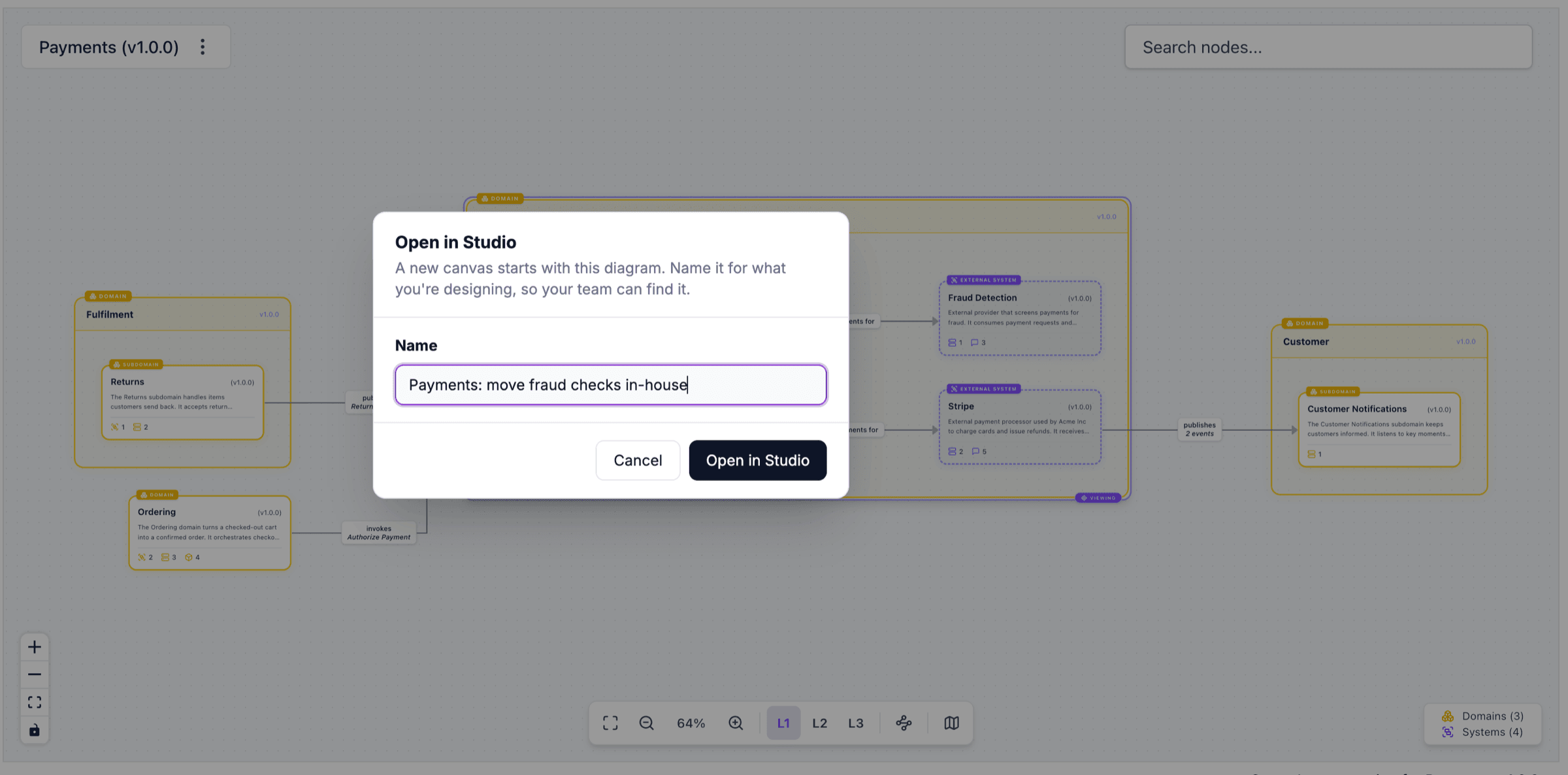
Open Studio from the sidebar and start a canvas. Name it for what you're designing, so your team can find it later.
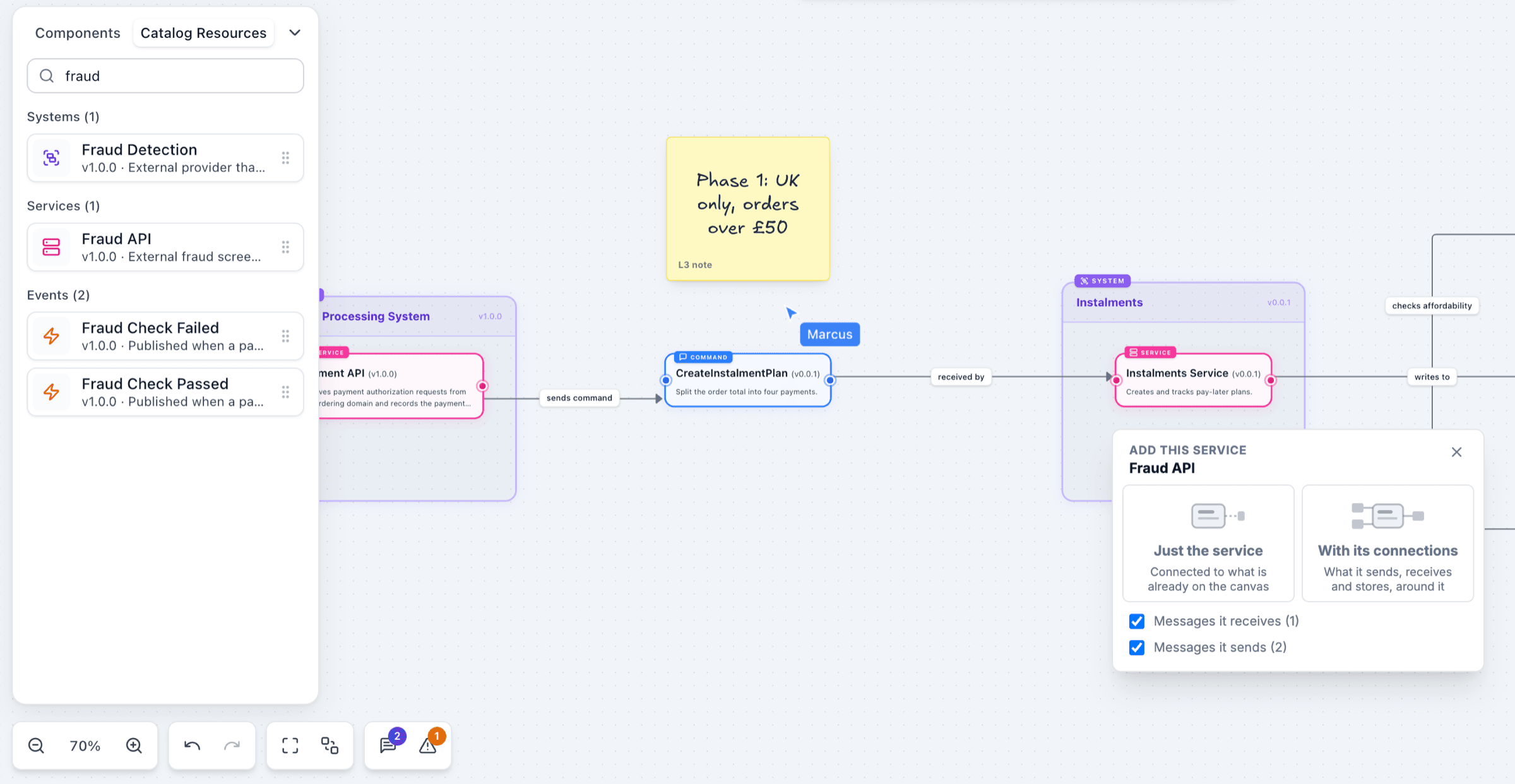
The Catalog Resources tab lists everything in your catalog: domains, systems, services, events, commands, queries, channels and data stores. Search for what you need and drag it onto the canvas. Each resource arrives with its real name, version and summary.
When you add a service, Studio asks whether you want just the service, or the service with its connections: the messages it sends and receives and the data it stores. One click and the service arrives with everything around it.
You don't have to start from a blank canvas either. Every diagram in your catalog now has Open in Studio in its menu. Studio copies the diagram onto a new canvas, with the same resources, layout, domains and systems, so you can start changing it straight away.
Sketch what doesn't exist yet
Planning means drawing things that aren't in the catalog yet. The Components tab has the building blocks for that: domains, systems, services, views, external systems, agents, events, commands, queries, channels, databases, caches, search indexes, object stores, entities, actors and teams.
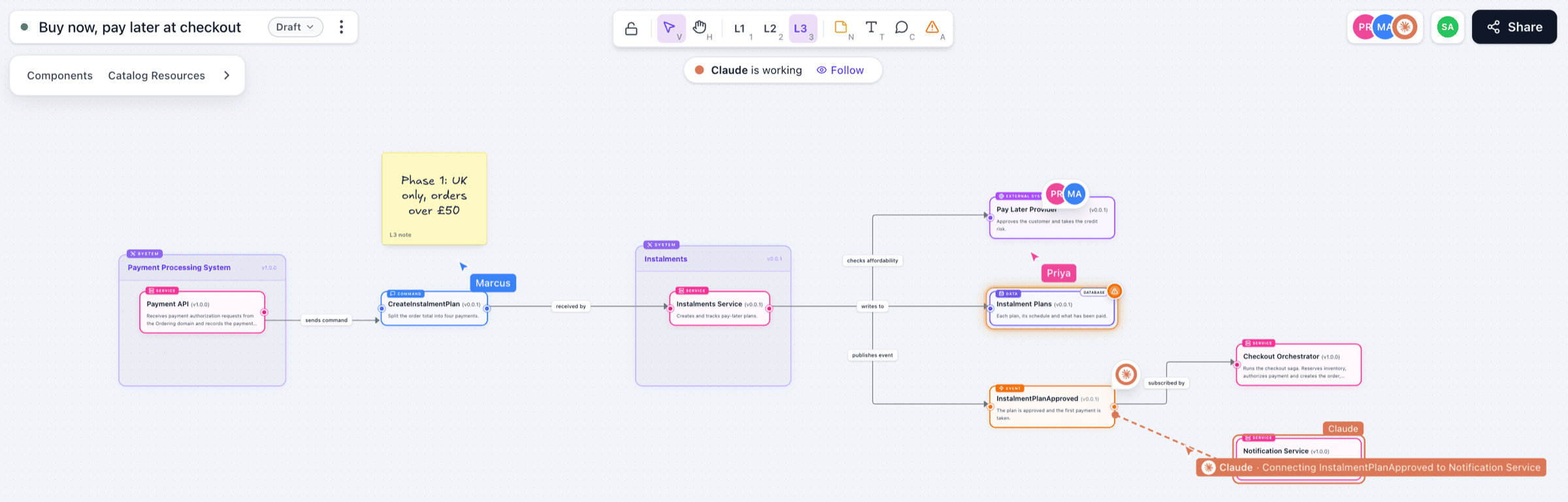
Add a proposed service, give it a name and a short summary, and connect it to the real resources around it. Connections use EventCatalog's own wording, like "publishes event" and "subscribed by", so a canvas reads like the rest of your catalog.
In the canvas above, the Payment API and Notification Service come from the catalog. The Instalments system, its service and database, the new command and event, and the pay-later provider are all new ideas, drawn next to the parts of the architecture they'll change.
The right level of detail for the conversation
Canvases have the same three levels as diagrams in your catalog. One canvas, three ways to look at it:
- L1 shows domains, systems and how they relate. Use it when you're talking to leadership, or deciding where something belongs.
- L2 opens the systems up into their services and data stores. Use it to agree on ownership and boundaries.
- L3 shows everything, including the messages and channels between them. Use it when the engineers sit down to design the contracts.
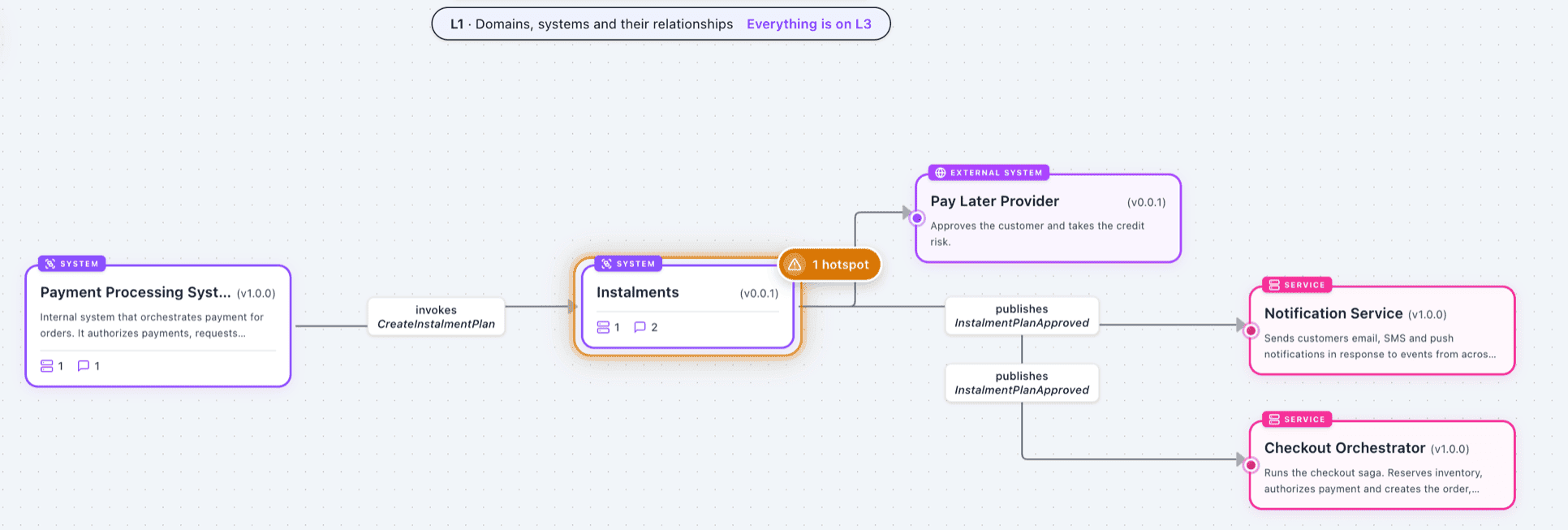
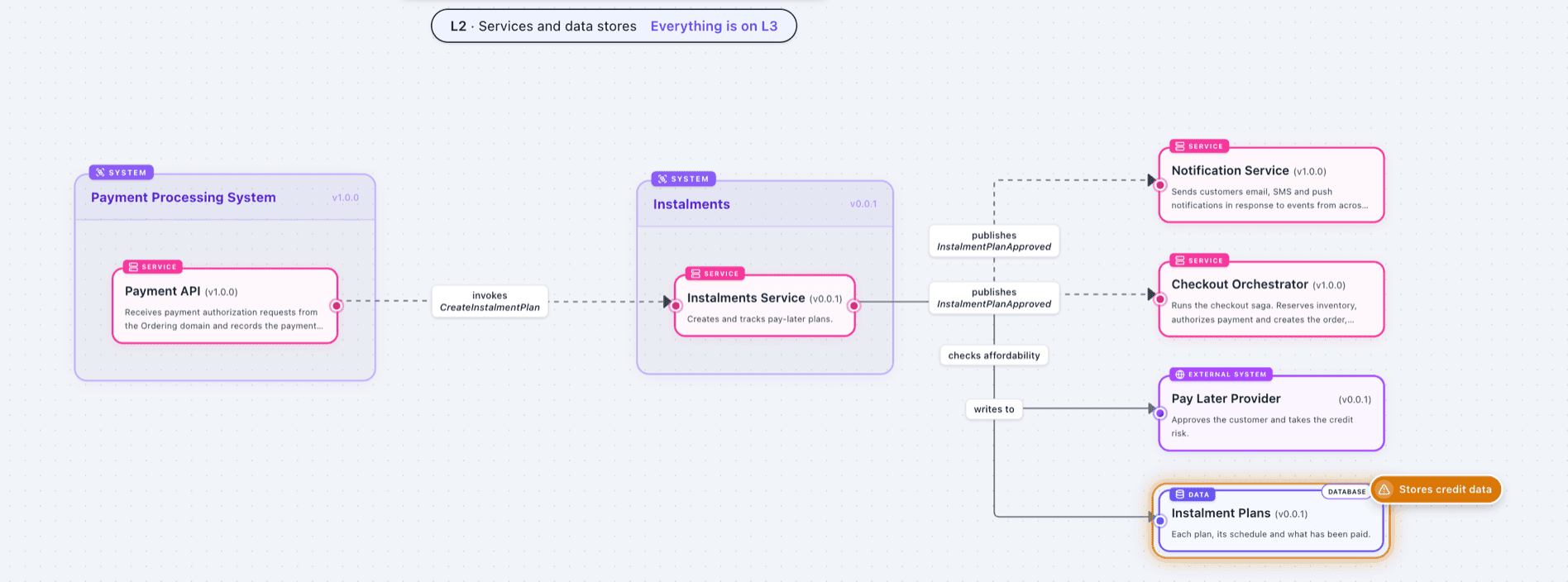
You draw once, at the most detailed level, and zoom out when the audience changes. Nothing is lost when you switch. Hotspots roll up too, so the L1 view above still tells you there is a concern inside the Instalments system.
Work on it together, live
Share a canvas with a link and your team joins you on it. Everyone sees each other's pointers, names and edits as they happen. Click someone's avatar to jump to what they're looking at.
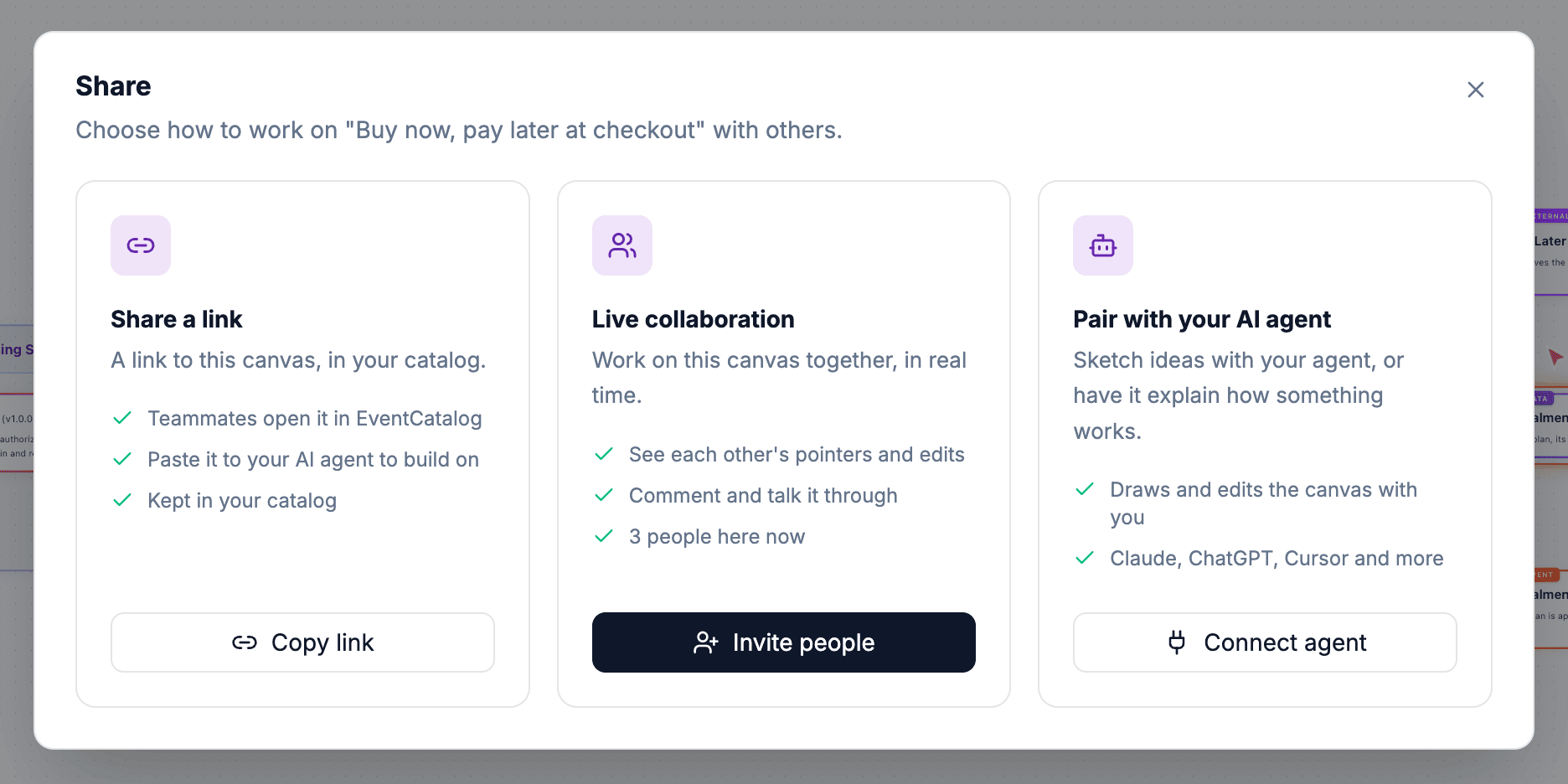
Canvases are built for discussion as well as drawing:
- Comments. Pin a comment to a node or anywhere on the canvas. Reply in a thread, and resolve it when it's settled.
- Hotspots. Flag a risk on a node, marked as critical, a warning or info, so it can't be missed in a review.
- Sticky notes and text for assumptions, scope and decisions.
- Lock the canvas when you want people to look, not change.
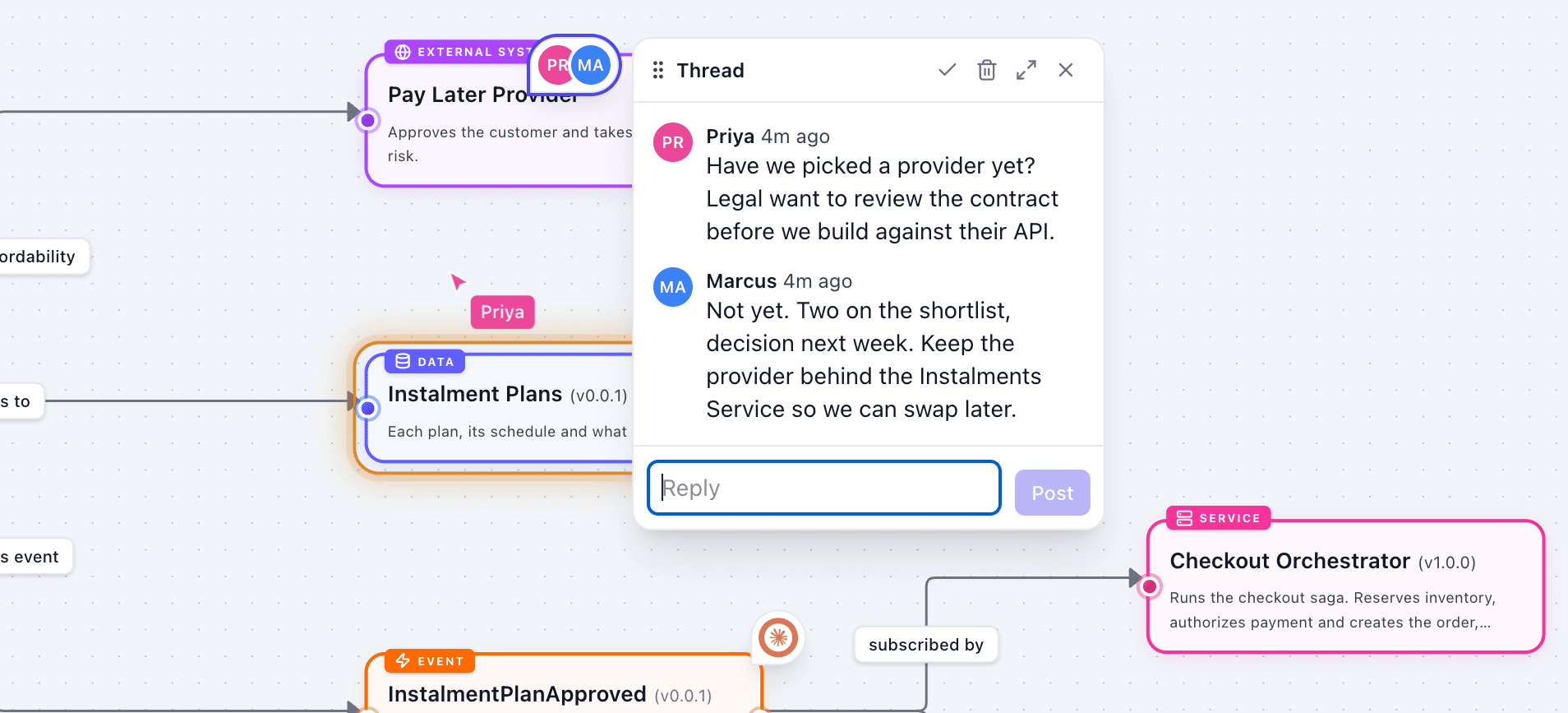
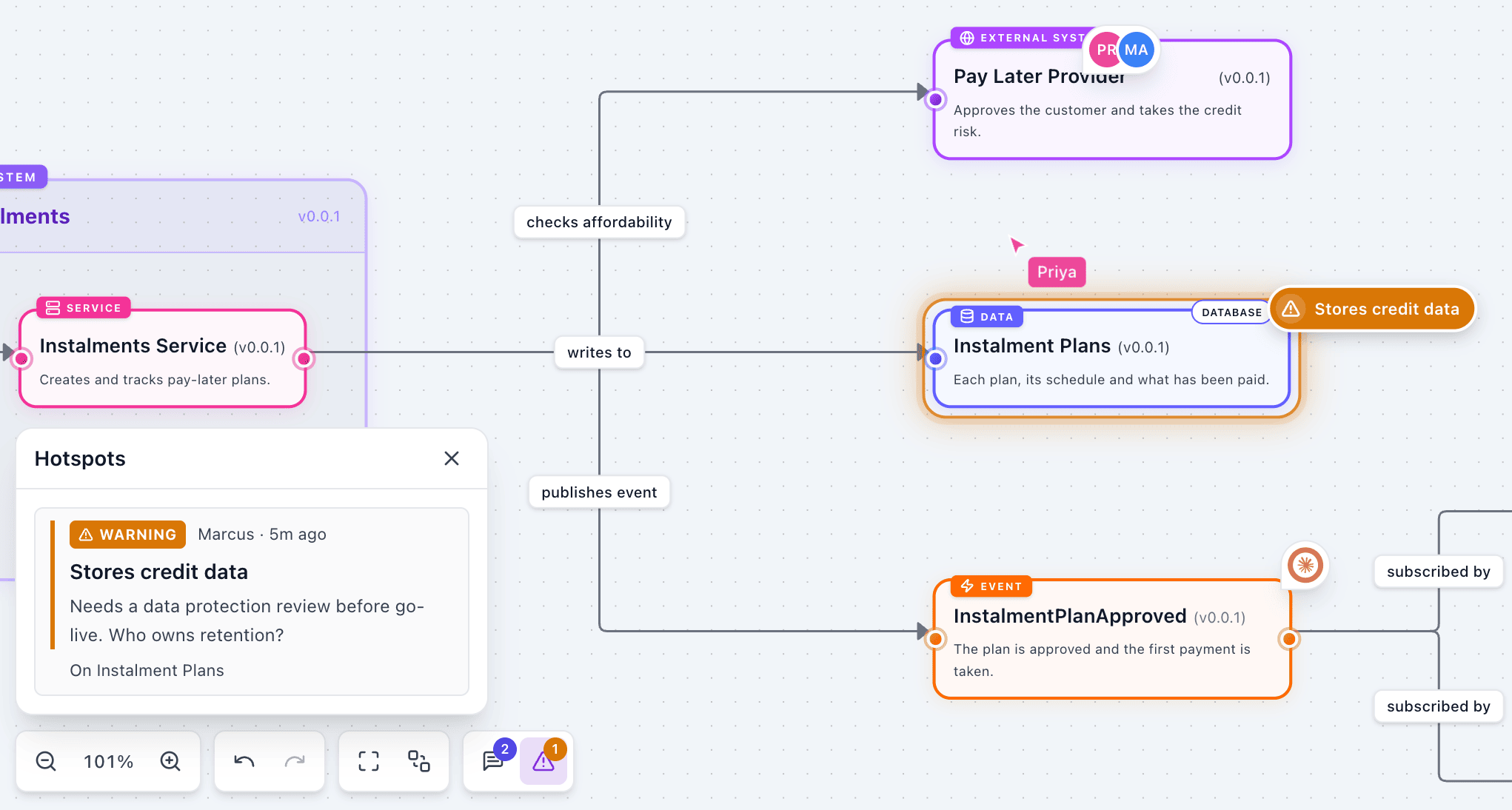
When your catalog has authentication turned on, only signed-in people can open canvases, and they show up with the name and picture from your identity provider.
Take it from idea to decision
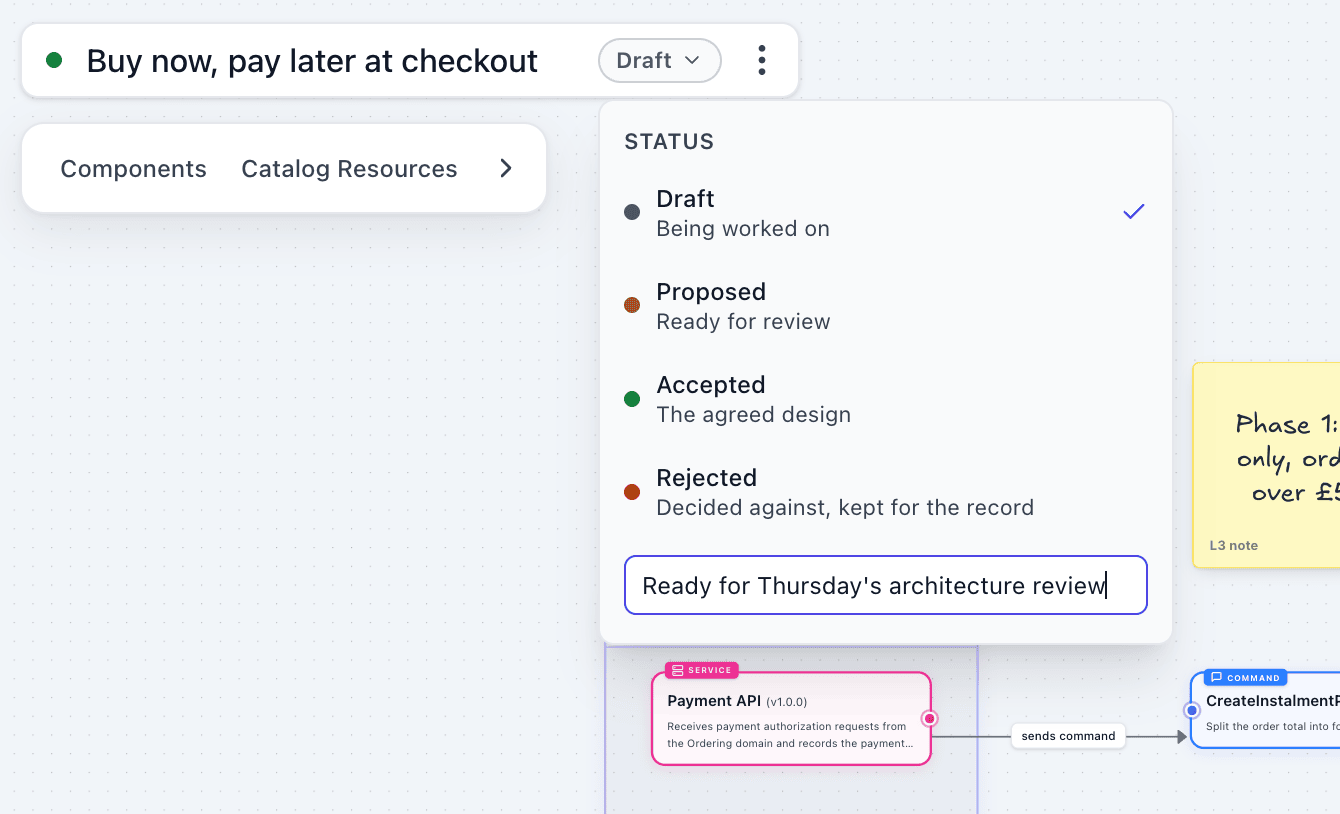
Every canvas has a status: Draft, Proposed, Accepted or Rejected. Move it along as the design matures, with an optional note like "Agreed in the architecture review". Studio keeps the history, so months later you can see what was decided and why, including the ideas you turned down.
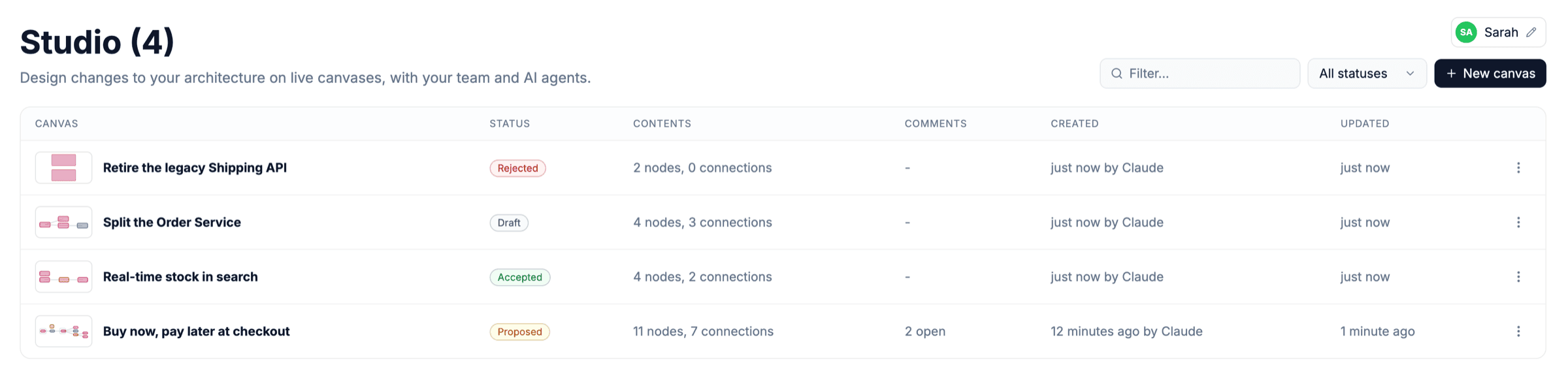
The Studio page lists every canvas with its status, size, open comments and who created it, so you can see at a glance what your teams are designing.
Bring AI agents onto the canvas
This is the part I'm most excited about.
Your AI agents can join a canvas and work on it with you, live. Connect Claude, Claude Code, ChatGPT, Cursor or VS Code to your catalog's MCP server, and the agent can open canvases, add resources from your catalog, draw new components, connect them, tidy the layout and change the status.
The agent joins like a person would. It has its own pointer, you see what it's doing ("Connecting InstalmentPlanApproved to Notification Service"), and its changes appear one step at a time, so you can follow along. Click Follow and your view moves with it.
Because the agent works from your catalog, it uses your real services and messages, not ones it imagines. Try asking it:
- "Add a payments service that listens to OrderPlaced"
- "How could we split the orders service?"
- "Walk me through what happens when a payment fails"
In clients that support MCP Apps, such as Claude and ChatGPT, the canvas opens inside the conversation, and the agent's changes appear there and in everyone's browser at the same time. Agents can also review a canvas and leave comments when you ask them to.
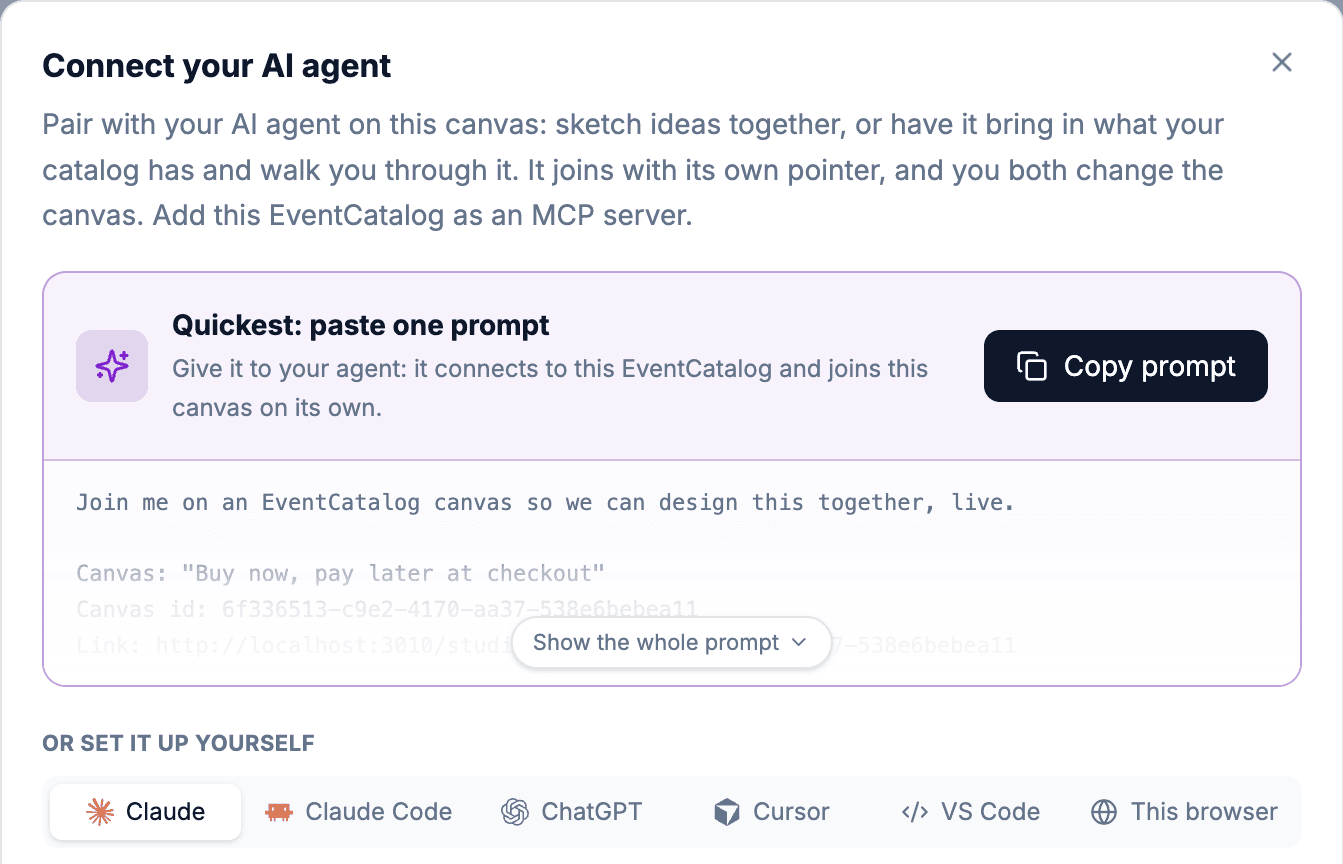
Connect your AI agent in the canvas menu shows you how. The quickest way is to copy one prompt and paste it into your agent, and it connects to your catalog and joins the canvas on its own.
Your canvases stay in your catalog
Studio runs inside your EventCatalog, on your own infrastructure. Canvases are saved to storage you configure, not to a third-party service.
Set storage in eventcatalog.config.js to keep them in a SQLite database file. Put it on a volume in your container and it survives restarts and redeploys:
export default {
  output: 'server',
  studio: { enabled: true },
  storage: {
    type: 'sqlite',
    path: '/data/eventcatalog.db',
  },
};
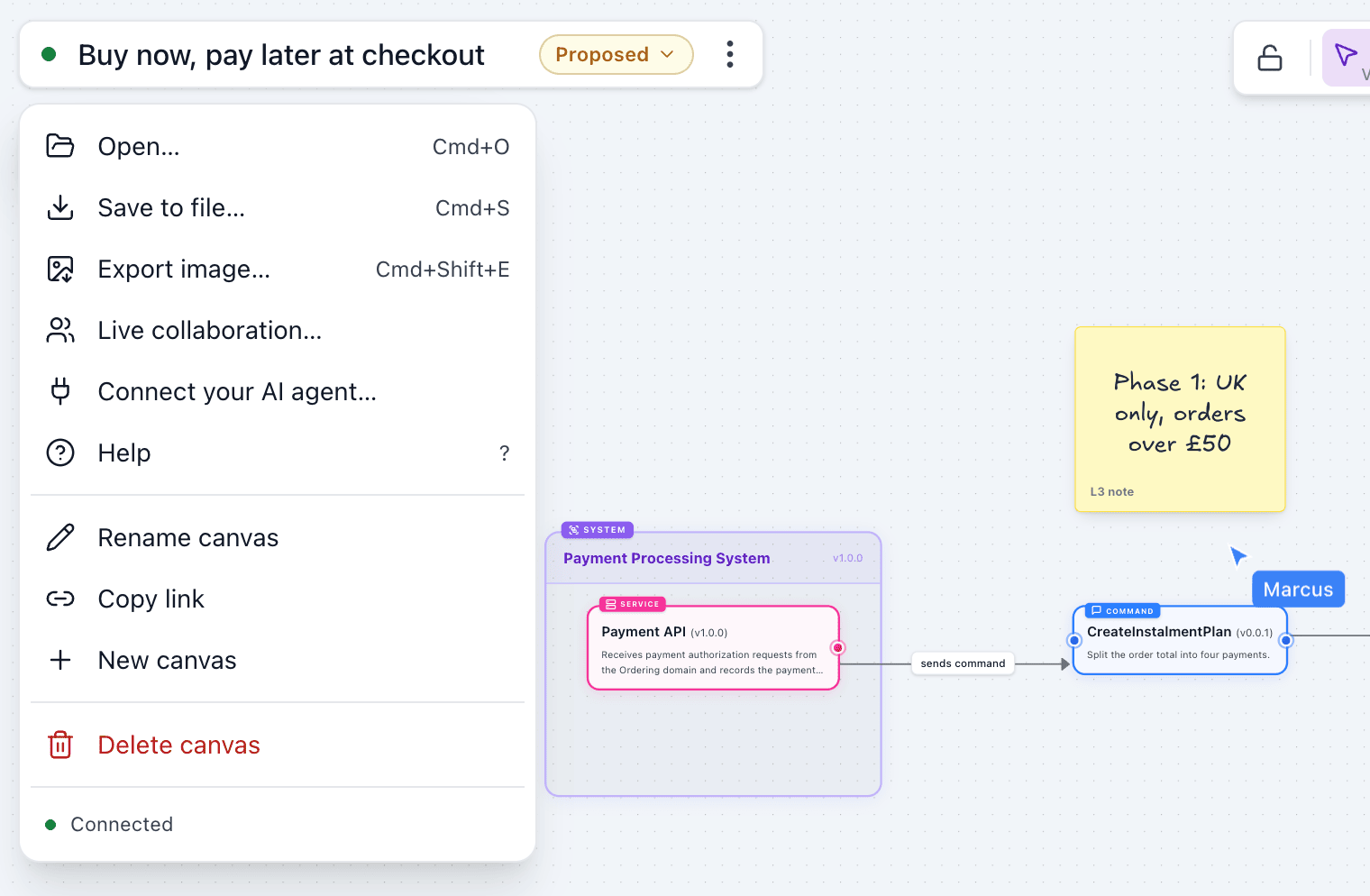
You can also take a canvas with you from the canvas menu:
- Export image saves the canvas as a PNG for slides, docs and pull requests.
- Save to file downloads an
.eventcatalogfile you can commit next to your code, and Open brings it back.
Try it
Studio is part of EventCatalog v5. Upgrade your catalog:
npm install @eventcatalog/core@latest
Studio is on in eventcatalog dev. Run your catalog and open Studio from the sidebar.
To use it in production, turn it on: run your catalog in server mode (output: 'server', served with eventcatalog start), set studio: { enabled: true }, and configure storage as above. SQLite storage needs Node.js 22.13 or later. Without it, canvases are kept in memory and are lost when the server restarts.
Start with Create a canvas, then connect your agent to your canvas.
No catalog yet? Try EventCatalog Studio on the web. It runs in your browser with no sign-up, and you can export your design to EventCatalog when you're ready.
Studio is new and marked as experimental while we shape it with you. Pick something your team is planning, put it on a canvas, and invite your team and your agent. Tell us how it goes in Discord, or open an issue on GitHub.