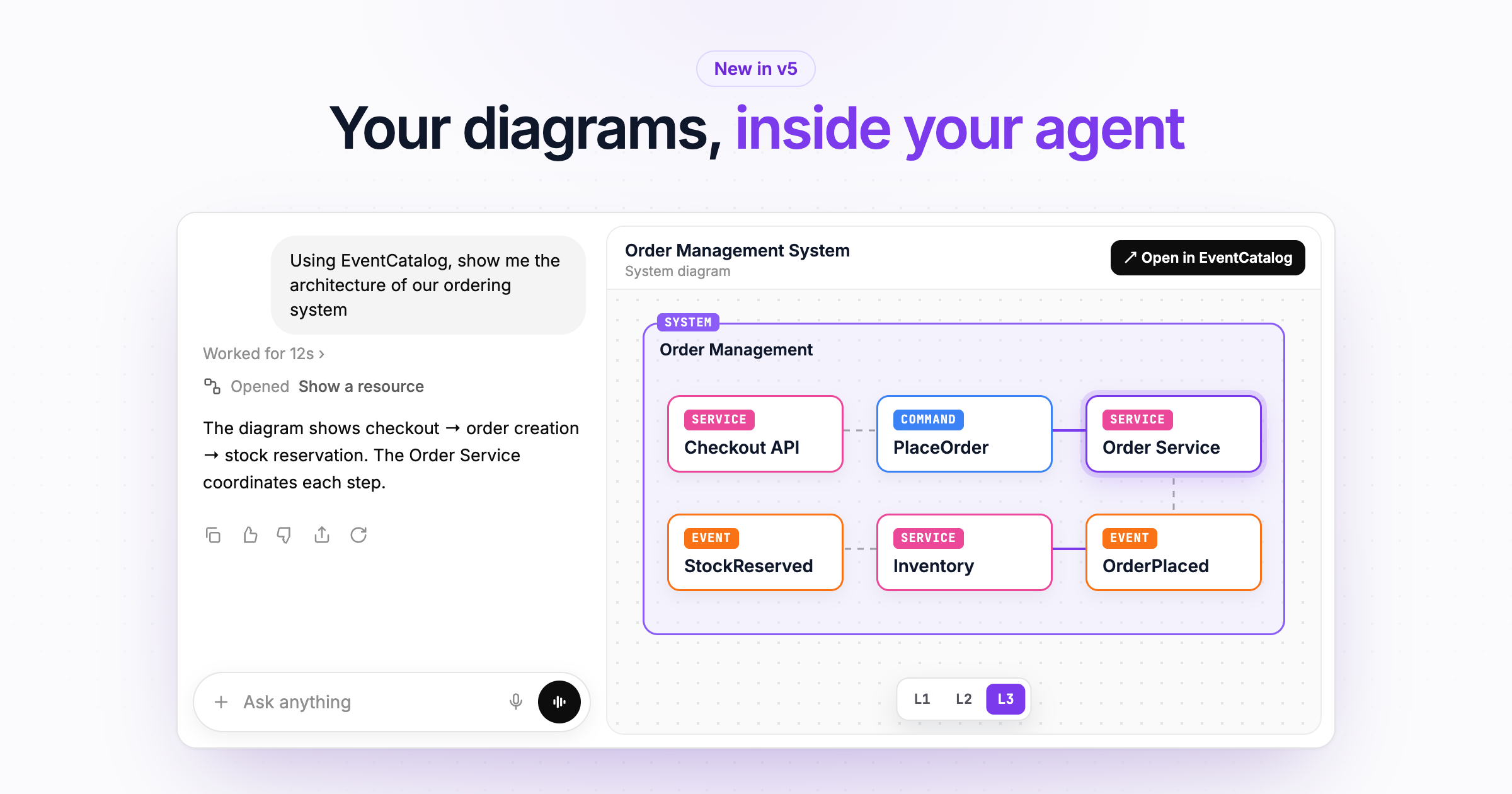
EventCatalog's MCP server can now show your real architecture diagrams and schemas inside AI tools that support MCP Apps, including Claude, ChatGPT and VS Code. Switch levels, search, and ask questions about any node without leaving the conversation.
Ask an AI tool how a service works and you get a wall of text.
"The Order Service accepts PlaceOrder, publishes OrderCreated and OrderCancelled, which are consumed by Fulfilment and Notifications, which..." By the third service, you are drawing the diagram in your head.
Some tools will draw one for you. But a diagram an AI model generates is a guess. It can look right and still be wrong, and you have no way to tell without checking it against the real thing.
You already have the real thing. Your catalog knows exactly how your services, messages and domains connect.
In EventCatalog v5, the MCP server can show your actual architecture diagrams and schemas inside the conversation. In Claude, ChatGPT, VS Code and other tools that support MCP Apps, you get the interactive EventCatalog visualiser right in the chat.
Ask for a diagram, get your diagram
EventCatalog's MCP server has a new tool called showResource.
When you ask something like "show me how the Order Service works", your AI tool calls showResource, and EventCatalog returns the same diagram you would see on that service's Diagram page in your catalog. Not a picture of it, the actual visualiser.
 ClaudeEventCatalog connected
EventCatalogshowResource
Orders Service accepts PlaceOrder and listens for PaymentTaken. It publishes OrderCreated and OrderCancelled, which Fulfilment and Notifications consume.
An MCP client showing the Order Service diagram from EventCatalog, then asking a question about one of its events.
Because it is the real visualiser, you can work with it:
- Switch levels. Diagrams use the same three levels as your catalog, from domains and systems at L1 down to messages and channels at L3.
- Search for a resource in the diagram.
- Open other diagrams for the resources you can see, without asking again.
- Ask about any node. Pick a node, type your question, and it goes straight back into the conversation with the context of what you picked.
That last one is my favourite. You stop describing things to your AI tool ("the event the Order Service publishes when..."), and start pointing at them.
You can show diagrams for domains, systems, services, agents, events, commands, queries, flows, data stores and data products.
Schemas, too
Diagrams answer "how does this connect?". The next question is usually "what's in the message?".
Ask for a schema ("show me the schema for OrderCreated") and showResource opens it in the same viewer as the Schema Explorer:
- A Schema tab with the highlighted source.
- A Properties tab for JSON Schema, Avro and Protobuf, which you can search and expand.
- If a message has several schemas, you can switch between them.
ClaudeEventCatalog connectedEventCatalogshowResource
OrderCreated has five properties. orderId, customerId, items and total are required, and total.currency is a three-letter ISO code.
An MCP client showing the OrderCreated schema from EventCatalog, then searching its properties for the currency field.
Diagrams and schemas share one viewer, and it asks your AI tool to open it full screen. In clients such as ChatGPT, the viewer stays open and switches to each diagram or schema you ask for, rather than stacking a new one in the conversation every time.
What about clients without MCP Apps?
MCP Apps are an extension to MCP that lets a server return an interactive interface, not only text. Not every client supports them yet.
That's fine. Clients without MCP Apps get the diagram as Mermaid and the schema as code, which your AI tool can show you or reason about. You don't need to configure anything different. The same tool works everywhere, and the experience gets better in the clients that support it.
Grounded in your catalog, not generated
I think this matters more than it first looks.
When an AI tool draws your architecture from memory or from a few files it has read, it fills the gaps with whatever seems likely. When it shows your diagram from EventCatalog, there are no gaps to fill. It's built from the same domains, systems, services and messages your teams document and maintain, the same way your Diagram pages are built.
So when someone on your team asks their AI tool how checkout works, they see the diagram your architects would show them. And if the diagram is wrong, the fix is to update the catalog, which fixes it for everyone, people and agents alike.
Other MCP improvements in v5
We also spent time making the MCP server nicer to use day to day:
- Every tool is read-only and has a title, so MCP clients can auto-approve them. Fewer "allow this tool?" prompts.
- Versions are optional on every tool. Leave them out and you get the latest version. On a domain or system MCP server, that means the latest version in that domain or system.
getResourcereturns the resource's frontmatter and markdown, which is easier for models to work with.- Data product tools are now on the MCP server.
- Hidden resources are no longer listed.
- Settings > MCP lists each domain's MCP server next to the catalog MCP server, with full URLs ready to copy.
And with v5, the MCP server is included for everyone. You don't need a separate plan or license key to turn it on. Read what changed with the v5 license.
Try it
The MCP server runs when EventCatalog is in server mode:
export default {
  output: 'server',
  // ...
};
Then:
- Upgrade to v5:
npm install @eventcatalog/core@latest. - Add your catalog's MCP server to your AI tool. The URL is
https://your-eventcatalog.com/docs/mcp/, orhttp://localhost:3000/docs/mcp/locally. - Ask it to show you a domain, a service or a schema.
The MCP server guide covers client setup, the showResource options, and which collections support diagrams.
I'd love to see what you build with this. Share a screenshot in Discord, or open an issue on GitHub if something doesn't look right.