Routing messages through channels
eventcatalog@2.65.0Services in EventCatalog can send and receive messages.
When you define this you can also specify how the message is transported using channels.
You do this using the to and from fields in your service frontmatter.
Publishing messages to channels
To publish a message through a channel you need to specify the channel in the to field in your service frontmatter.
In this example the OrderService sends an OrderPlaced message to the orders.events channel.
---
id: OrderService
# The messages this service sends
sends:
  # The id of the message this service sends
  - id: OrderPlaced
    to:
      - id: orders.events
      # You can also publish to many channels
      - id: orders.events.filtered
---
This assumes you have already defined the orders.events channel documentation.
Consuming messages from channels
To consume a message from a channel you need to specify the channel in the from field in your service frontmatter.
In this example the PaymentService consumes the OrderPlaced message from the orders.events channel.
---
id: PaymentService
# The messages this service receives
receives:
  - id: OrderPlaced
    from:
      - id: orders.events
      # You can also consume from many channels
      - id: orders.events.filtered
---
Channels visualized in EventCatalog
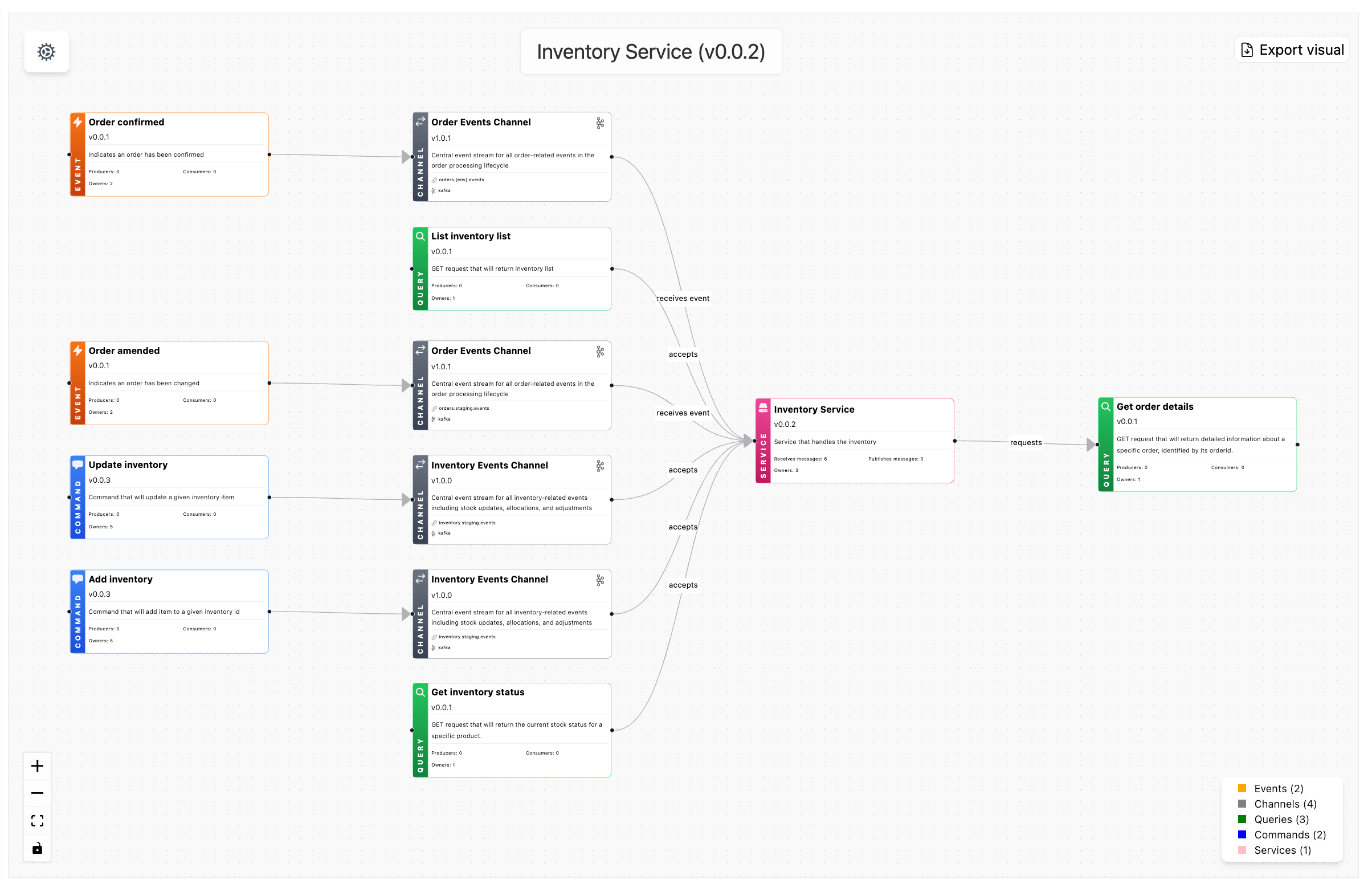
When messages get added to your channels EventCatalog will visualize this for you through the visualizer.
You can turn off the channels in the visualizer by using the visualizer settings in the UI.
Chaining channels
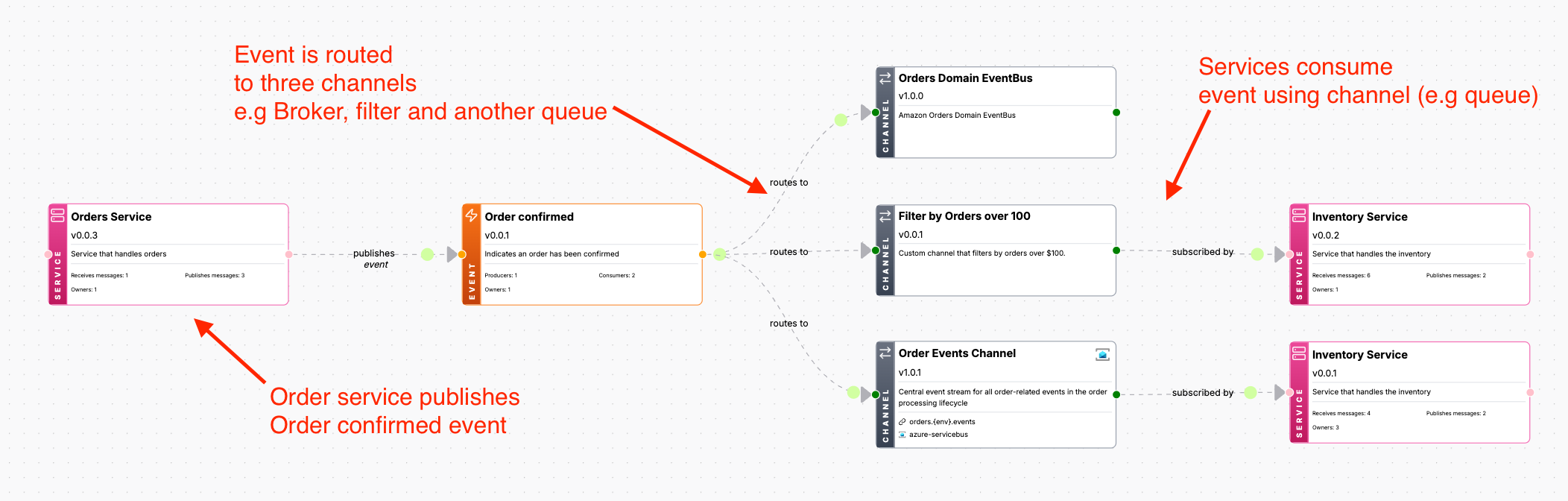
In some cases you may want to chain channels together. For example you may want to send a message from one channel to another channel before it is consumed by something downstream.
For example you may want to publish an event to a broker, then route/filter events to another channel (e.g Queue, Topic, etc) before it is consumed by something downstream.
This let's you model publish/subscribe patterns or point to point messaging patterns.
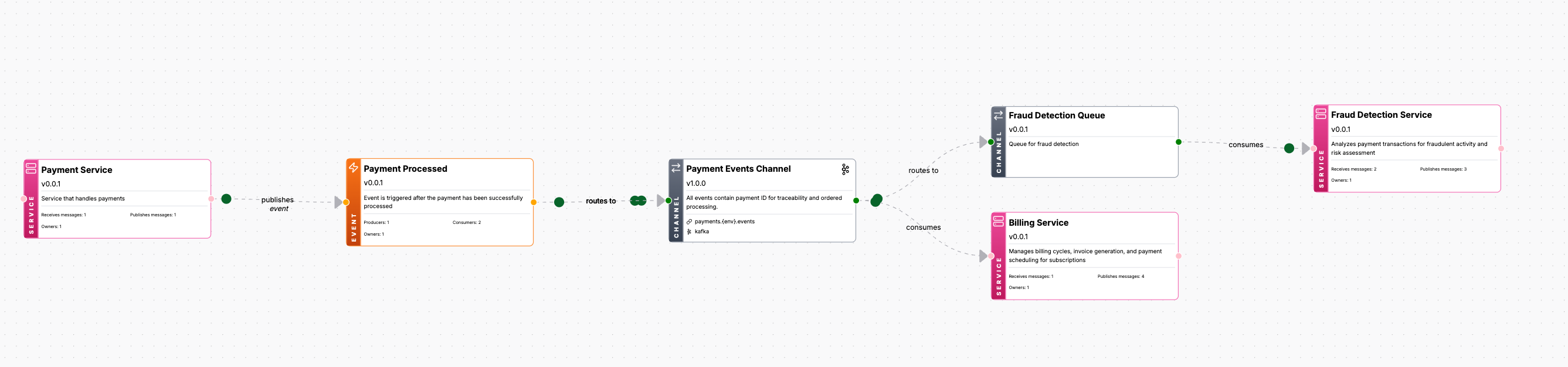
Example of publish/subscribe pattern
Let's say we have :
- A
OrdersServicepublishing anOrderPlacedevent to theorders.eventschannel. - A
PaymentServiceconsuming theOrderPlacedevent from theorders.eventschannel. - A
FraudDetectionServiceconsuming theOrderPlacedevent from theorders.eventschannel.
To model this, we define the OrdersService to send the OrderPlaced event to the orders.events channel.
---
id: OrderService
# The messages this service sends
sends:
  - id: OrderPlaced
    to:
      - id: orders.events
---
Then we define the PaymentService to consume the OrderPlaced event from the orders.events channel.
---
id: PaymentService
# The messages this service receives
receives:
  - id: OrderPlaced
    from:
      - id: orders.events
---
Then we define the FraudDetectionService to consume the OrderPlaced event from the orders.events channel.
---
id: FraudDetectionService
# The messages this service receives
receives:
  - id: OrderPlaced
    from:
      - id: orders.events
---
This will model that the OrderServices is publishing onto the broker, with many consumers consuming the event from the same channel.
Point to point messaging pattern
Let's say we have :
- A
OrdersServicepublishing anOrderPlacedevent to theorders.eventsevent broker. - Filtering is setup on the
orders.eventsevent broker to route the event to a new topicorders.events.filtered - A
PaymentServiceconsumes the event through a custom queuepayment.queue
First we define the OrdersService to publish an event to the orders.events event broker.
---
id: OrderService
# The messages this service sends
sends:
  - id: OrderPlaced
    to:
      # Route to the event broker we defined
      - id: orders.events
---
Next we define the PaymentService to consume the event from the payment.queue queue.
---
id: PaymentService
# The messages this service receives
receives:
  - id: OrderPlaced
    from:
      # Consume from it's own queue
      - id: payment.queue
---
Next we setup the routing logic between the channels.
Here, we tell the broker (channel) that is can route to the orders.events.filtered topic.
---
id: orders.events
# The routes for this channel
routes:
  - id: orders.events.filtered
---
Next, we tell the orders.events.filtered channel it can route to the payment.queue queue.
---
id: orders.events.filtered
# The routes for this channel
routes:
  - id: payment.queue
    to:
      - id: payment.queue
---
EventCatalog will understand the channel routes and relationships and create a visual representation of the channels and their relationships.
Looking for previous channel documentation?
Find previous channel documentation below. If you are using EventCatalog 2.65.0 or greater you can skip this section.
Channel documentation for versions less than 2.65.0
EventCatalog supports different types of messages (commands, events and queries).
Any message can be added to one or many channels.
To add messages to a channel you first have to define your messages.
Once you define your message you can specify that channel/s it uses.
In the visualizer you can show and hide the channels.
To hide the channels in the visualizer you can use the visualizer settings in the UI
By default EventCatalog will render multiple nodes for your channels in the visualizer. This is to give you a better understanding of the relationship between your messages and channels.
If you prefer to only see a single node for your channels you can change the rendering mode in the visualizer settings.
Adding messages to your channels
To add a message to a channel, you need to add the channels information to your message.
Here is an example of adding channel information to an InventoryOutOfStockEvent.
---
id: InventoryOutOfStockEvent
... # other event frontmatter
channels:
  # The id of the channel to map to.
  - id: inventory.{env}.events
    # The version of the channel, this is optional and not required
    # EventCatalog will map to the latest channel version if not used.
    version: 0.0.1
    # optional list of params for this channel
    # this example means that this message is used on the inventory.dev.events channel
    parameters:
      env: dev
---

<!-- Markdown contents... -->
The receives and sends fields in your service tell EventCatalog which messages this service either consumes or publishes.
Versioning for channels is optional. But if your message/channel relationship evolves over time, and you find value capturing this version/history then you can version your channels.
Using semver versioning
You can use semver syntax when referencing your channels in your messages.
---
id: PaymentDomain
... # other domain frontmatter
channels:
    # Latest minor version of InventoryEvents (channel) will be added
    - id: InventoryEvents
      version: 0.x.1
    # Minor and patches of this version will be linked
    - id: NotificationsChannel
      version: ^1.0.1
    # Latest version of this service will be shown by default.
    - id: PaymentsChannel
---

<!-- Markdown contents... -->
Visualizing messages with channels
When messages get added to your channels EventCatalog will visualize this for you through the visualizer.