Using plantuml
eventcatalog@2.46.0EventCatalog supports plantuml in all your markdown files.
This let's you create Class Diagrams, Sequence Diagrams, Class Diagrams, State Diagrams and much more.
Using plantuml in EventCatalog
To use plantuml you need to use the plantuml code block in any markdown file.
Example
```plantuml
@startuml
!define Table(name,desc) class name as "desc" << (T,#E5E7EB) >>
!define PK(x) <u>x</u>
!define FK(x) <i>x</i>

' ===== Core Tables =====

Table(Customers, "Customers") {
  PK(customerId): UUID
  firstName: VARCHAR
  lastName: VARCHAR
  email: VARCHAR
  phone: VARCHAR
  dateRegistered: TIMESTAMP
}

Table(Orders, "Orders") {
  PK(orderId): UUID
  FK(customerId): UUID
  orderDate: TIMESTAMP
  status: VARCHAR
  totalAmount: DECIMAL
}

Table(Products, "Products") {
  PK(productId): UUID
  name: VARCHAR
  description: TEXT
  price: DECIMAL
  stockQuantity: INT
}

Table(OrderItems, "Order Items") {
  PK(id): UUID
  FK(orderId): UUID
  FK(productId): UUID
  quantity: INT
  unitPrice: DECIMAL
}

Table(Payments, "Payments") {
  PK(paymentId): UUID
  FK(orderId): UUID
  amount: DECIMAL
  method: VARCHAR
  status: VARCHAR
  paidAt: TIMESTAMP
}

Table(InventoryEvents, "Inventory Events") {
  PK(eventId): UUID
  FK(productId): UUID
  eventType: VARCHAR
  quantityChange: INT
  eventTime: TIMESTAMP
}

Table(Subscription, "Subscriptions") {
  PK(subscriptionId): UUID
  FK(customerId): UUID
  plan: VARCHAR
  status: VARCHAR
  startDate: TIMESTAMP
  endDate: TIMESTAMP
}

' ===== Relationships =====

Customers ||--o{ Orders : places
Orders ||--o{ OrderItems : contains
Products ||--o{ OrderItems : includes
Orders ||--o{ Payments : paid_by
Products ||--o{ InventoryEvents : logs
Customers ||--o{ Subscription : subscribes

@enduml
```_
This example will output the following in the markdown file.

How it works?
The PlantUML implementation takes your content and converts it to a PNG image using https://www.plantuml.com/plantuml/svg.
Interactive controls
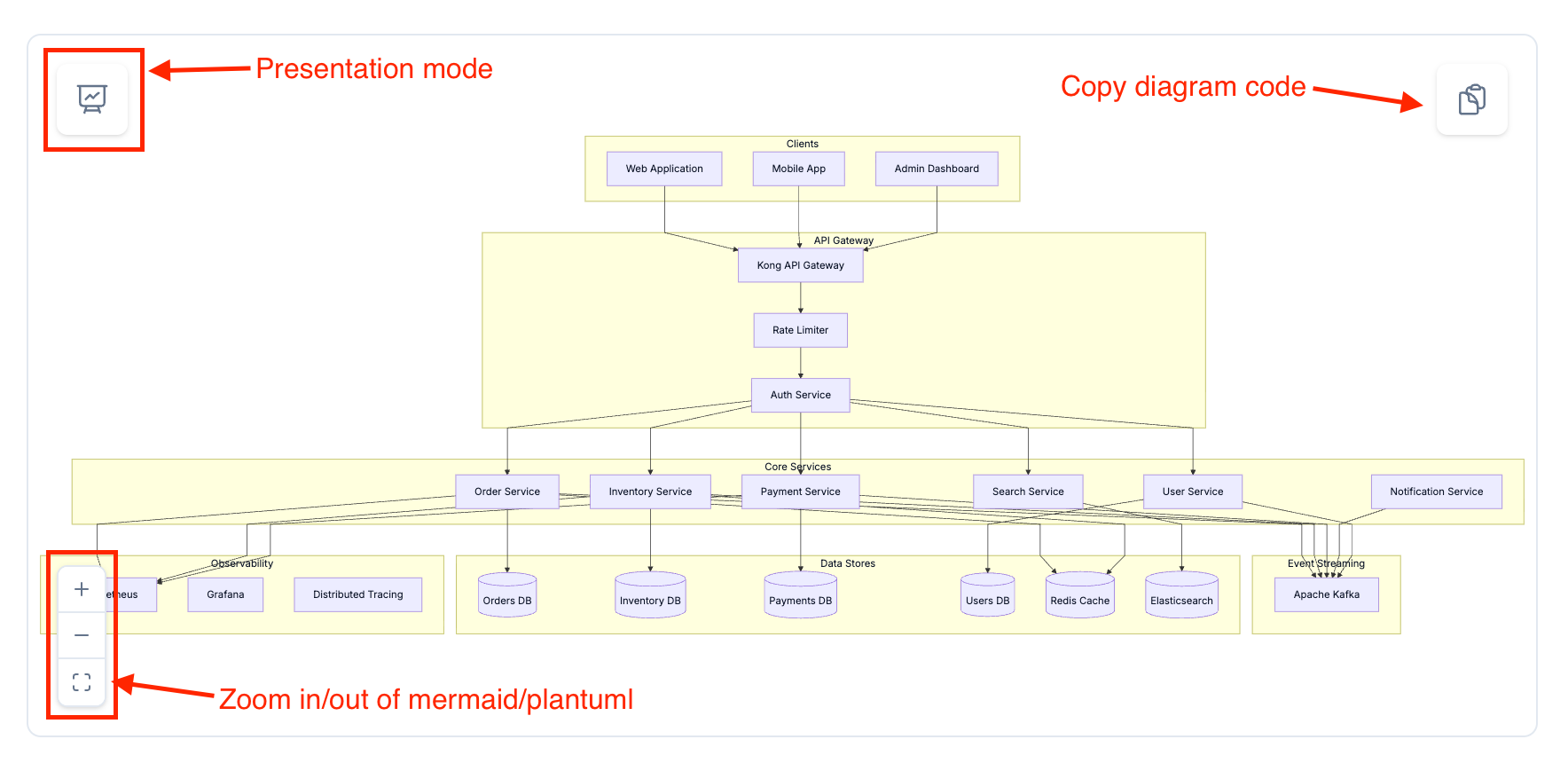
eventcatalog@3.5.0All PlantUML diagrams include interactive controls for better viewing and exploration.
Zoom and pan
Click and drag to pan around the diagram, or use the zoom controls in the bottom-left corner to zoom in and out. Double-click the diagram to zoom in quickly.
Presentation mode
Click the presentation button in the top-left corner to view the diagram in fullscreen. In presentation mode, mouse wheel zooming is enabled for precise control.
Press Escape to exit presentation mode.
Copy diagram code
Click the copy button in the top-right corner to copy the diagram code to your clipboard.
Useful for copying diagrams into LLM prompts.
More resources
- PlantUML documentation - Learn more about plantuml and how to use it
- Real world examples - Real world examples of plantuml in use