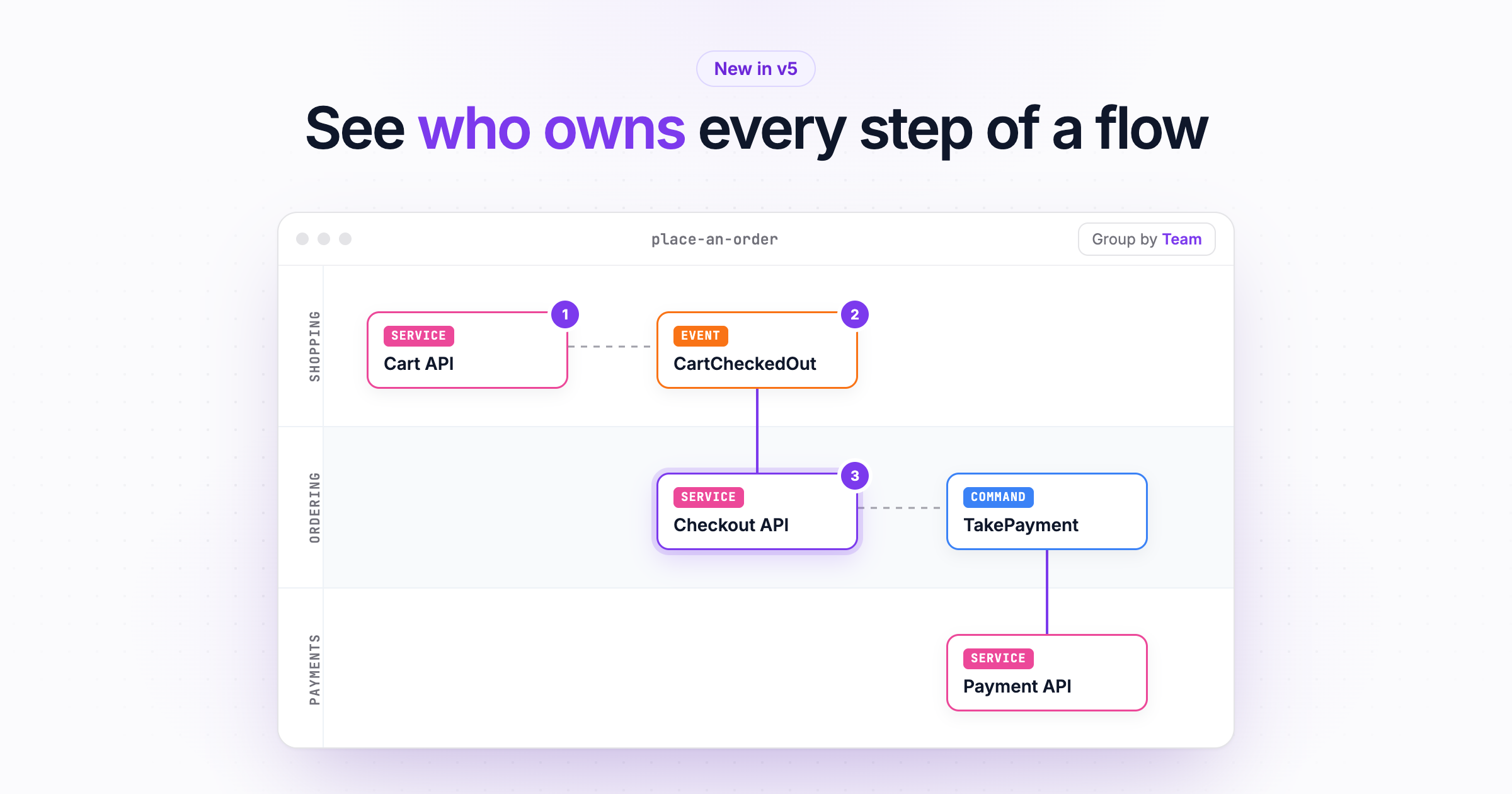
In EventCatalog v5 you can group any flow by domain, system or team, as boxes or swimlanes, without changing your flows. Plus a new step-by-step walkthrough, channel steps, and flows that tell you when something is wrong.
A flow tells the story of a business process. A shopper checks out, the cart is priced, payment is authorized, the order is created, and the customer gets a confirmation.
Flows in EventCatalog have always been good at showing the steps. But once a team has the steps, the next questions are almost always about ownership:
- Which teams are involved in this process?
- Where does it cross from one domain into another?
- Which systems have to work together for this to succeed?
Those questions matter because every boundary in a flow is a handoff. It's a contract between two teams, a dependency someone has to coordinate, and usually the place where things break. Until now, you had to work that out by clicking through each step.
In EventCatalog v5, you can group any flow by domain, system or team. You see the boundaries straight away, and you don't need to change a single line of your flows.
Group by domain, system or team
Open a flow and use Group by in the top right of the diagram, or press G.
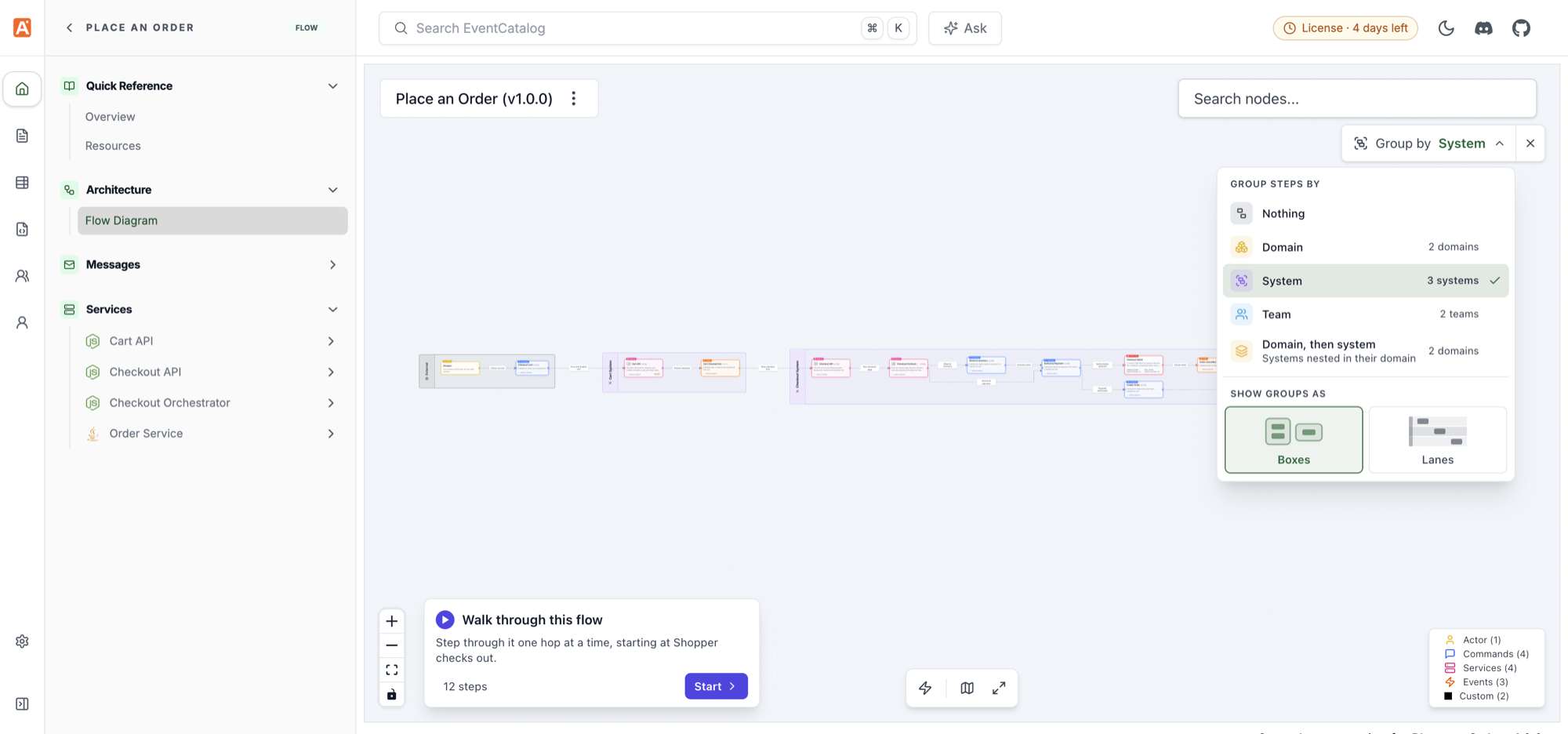
The Place an Order flow grouped by system. The menu shows how many groups each option makes: 2 domains, 3 systems and 2 teams. Read the explore flows docs.
You can group the steps by:
- Domain, to see where a process crosses business boundaries.
- System, to see which systems have to work together.
- Team, to see who you need in the room when the process changes.
- Domain, then system, with systems nested inside their domains.
Each option tells you how many groups it will make before you pick it, which on its own is a quick way to understand a flow. "This checkout touches 3 systems owned by 2 teams" is a useful sentence to have in a design review.
Then choose how to draw the groups:
- Boxes draw a box around each group's steps, like the pools in a process diagram.
- Lanes stack the groups as full-width swimlanes, with the group's name down the left.
Here's how it works on a Place an Order flow. Pick a grouping, or let it play:
Here is the same Place an Order flow grouped by domain, drawn as lanes. You can see straight away where the shopper hands over to the Shopping domain, and where Shopping hands over to Ordering.

Grouped by domain, as lanes. The shopper sits in External, the cart steps in Shopping, and the checkout and order steps in Ordering. Click the image to see it full size.
Group the same flow by team, and the lanes become the teams that own each step. This is the view I'd take into a planning meeting, because it shows who has to agree before the flow changes.

Grouped by team. Shopping Platform owns the cart, and Ordering Platform owns everything from checkout onwards.
Domain, then system nests the systems inside their domains, so you can see both boundaries at once. Lanes don't nest, so this option always draws boxes.

Grouped by domain, then system. The Cart System sits inside Shopping, and the Checkout System and Order Management System sit inside Ordering. Read how groups are worked out.
Your flows don't need to change
This is the part I'm happiest with. You don't add anything to your flows to group them.
EventCatalog already knows which domain and system each service belongs to, and which team owns it. So it works out each step's group from your catalog:
- Services, agents, data stores and data products go in the domain and system they belong to, and the team that owns them.
- Messages, channels and custom steps sit with the step before them, so a service and the event it publishes stay together.
- Actors and external systems get a group of their own, called External.
If you have been documenting domains, systems and owners, your flows get this for free. And if a flow looks wrong when you group it, that usually tells you something in the catalog is missing or out of date, which is worth knowing too.
Share it, or start a flow grouped
The grouping is kept in the URL, so you can send someone a link to the exact view you are looking at:
/visualiser/flows/place-an-order/1.0.0?group=system&groupStyle=boxes
If you want a flow to start grouped on a docs page, use the new lanes prop on the <Flow /> component:
<Flow id="place-an-order" lanes="team" />
Readers can still switch to another grouping, or turn it off, from the Group by menu.
A better walkthrough
Every flow diagram has a walkthrough that steps through the flow one hop at a time. We rebuilt it in v5.
It's smaller, so it doesn't cover your diagram, and it starts at the first step. As you go:
- The steps you have walked are numbered, and the current step is ringed.
- At a branch, you pick which way to go from a dropdown.
- Long summaries expand with More, and the link icon opens the current step's docs.
- Use ← and → to move, the number keys to pick a branch, and Esc to stop.
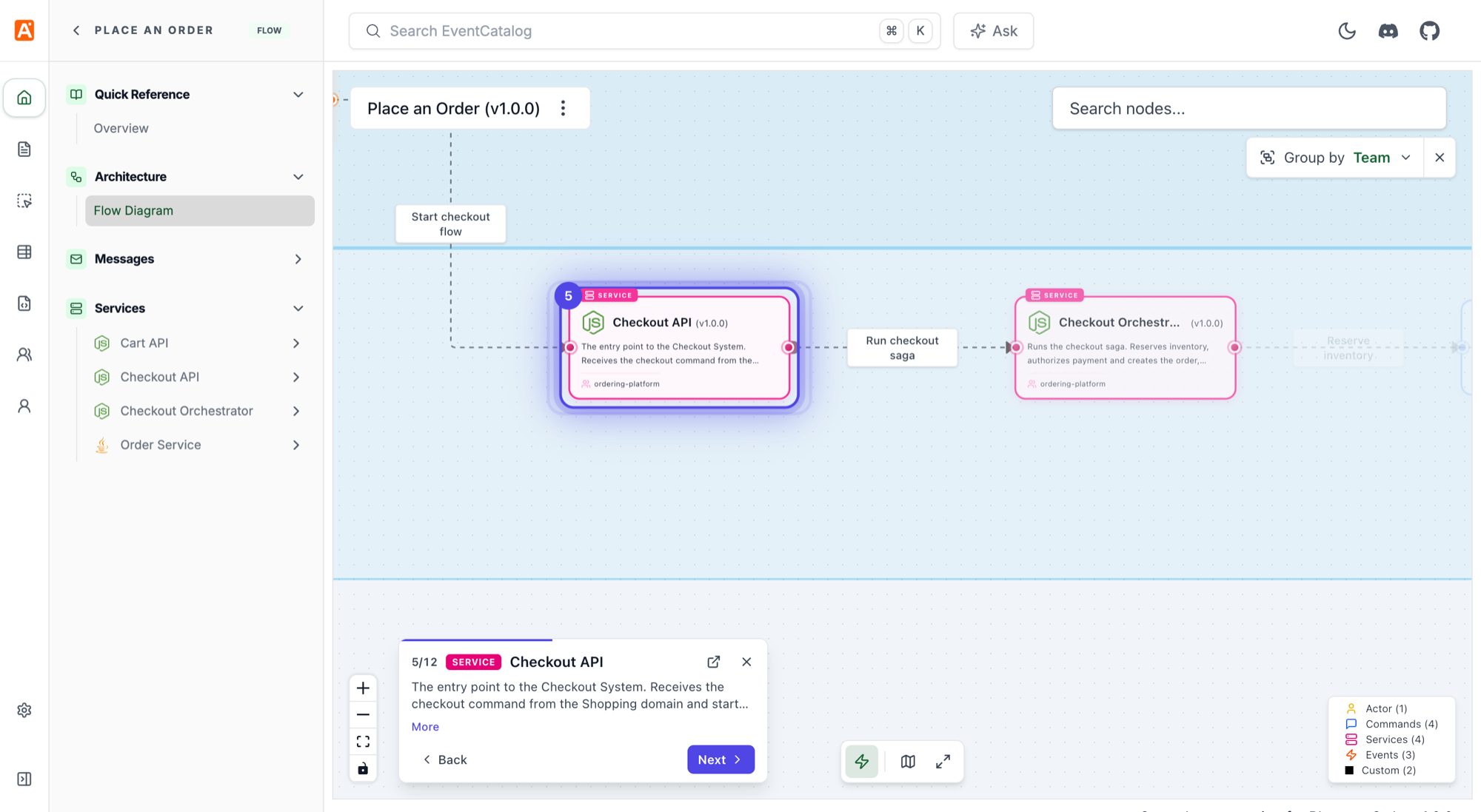
The walkthrough on step 5 of 12, with the flow grouped by team. The current step is ringed, and the card shows its type, title and summary.
It also works with grouping. Change how the flow is grouped halfway through, and the walkthrough carries on from the same step. Walking through a checkout flow grouped by team is a nice way to explain a process to someone new: they see each step, and who owns it, in order.
Channels in flows
Flow steps can now reference channels, so you can show the topic or queue a message travels through:
steps:
  - id: "orders_topic"
    channel:
      id: "orders"
      version: "1.0.0"
    next_step:
      id: "inventory_service"
      label: "Deliver to subscribers"
You might notice there's no title in that step. Step titles are now optional. If you leave one out, EventCatalog uses the name of what the step references, so the step above is labelled with the channel's name.
Flows that tell you when something is wrong
Flows used to fail quietly. Misspell service as servce and the step would render as a blank box, and you might not notice for weeks.
In v5, EventCatalog checks your flows when it builds. These fail the build with a message that names the step and tells you what to change:
Unknown property "servce". Custom properties must start with "x-".
Step "checkout" points at message and service. A step can only be one thing, so split it into two steps.
Smaller mistakes, like a next_step that points at a step that doesn't exist, or a reference to a service that has been renamed, log a warning and the build carries on.
If you add your own properties to steps, prefix them with x- (for example x-runbook). The EventCatalog Linter checks the same rules, so you can catch them in CI before they reach your build.
Smoother large flows
Big flows also got faster. Flow pages send less data to the browser, and the animations run more efficiently, so large flows pan and animate more smoothly. Flows also no longer show the L1, L2 and L3 levels you see on other diagrams. Grouping does that job better for a flow.
Try it
Flow grouping is part of EventCatalog v5. Upgrade your catalog:
npm install @eventcatalog/core@latest
Open one of your flows, press G, and group it by team. Then run eventcatalog build to see if any of your flows had mistakes hiding in them.
Read the explore flows and flow steps docs, share feedback in Discord, or open an issue on GitHub.