Grouping messages
eventcatalog@3.27.0When a service sends or receives many messages, the visualiser can become crowded. You can use the group field on any sends or receives entry to collect related messages into a named group node.
Adding groups to messages
Add the group field to any message in your service's sends or receives list. Messages that share the same group value are collapsed into a single node.
---
id: WarehouseService
version: 1.0.0
name: Warehouse Service
sends:
  - id: ShipmentDispatched
    version: 1.0.0
    group: Shipping
  - id: ShipmentFailed
    version: 1.0.0
    group: Shipping
  - id: InventoryReserved
    version: 1.0.0
receives:
  - id: PickRequested
    version: 1.0.0
    group: Picking
  - id: PickCancelled
    version: 1.0.0
    group: Picking
  - id: OrderPlaced
    version: 1.0.0
---
In this example:
ShipmentDispatchedandShipmentFailedare grouped under ShippingPickRequestedandPickCancelledare grouped under PickingInventoryReservedandOrderPlacedremain ungrouped and render as individual nodes
How groups appear in the visualiser
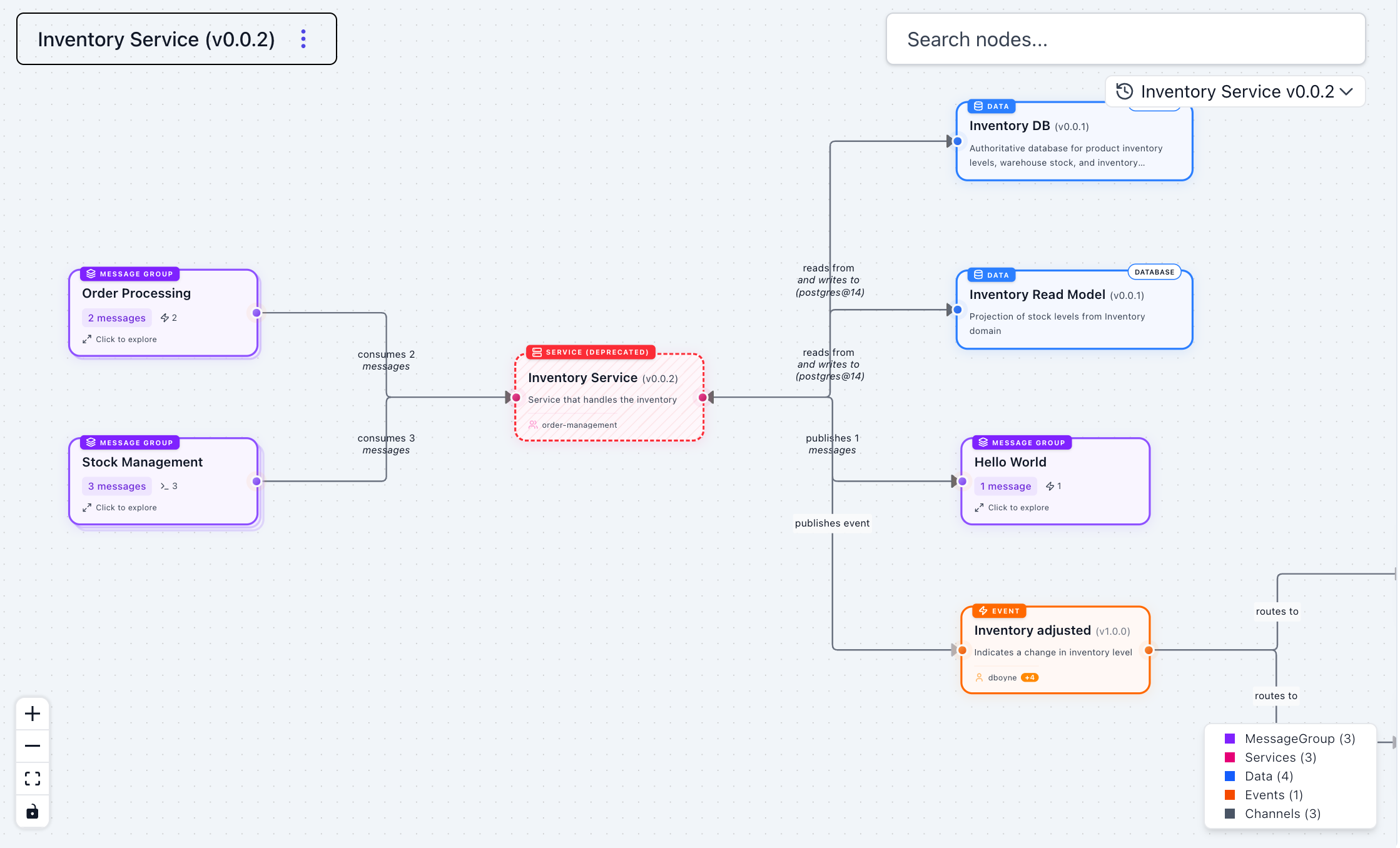
Grouped messages are displayed as a stacked card node showing the group name and message count.
Expanding and collapsing groups
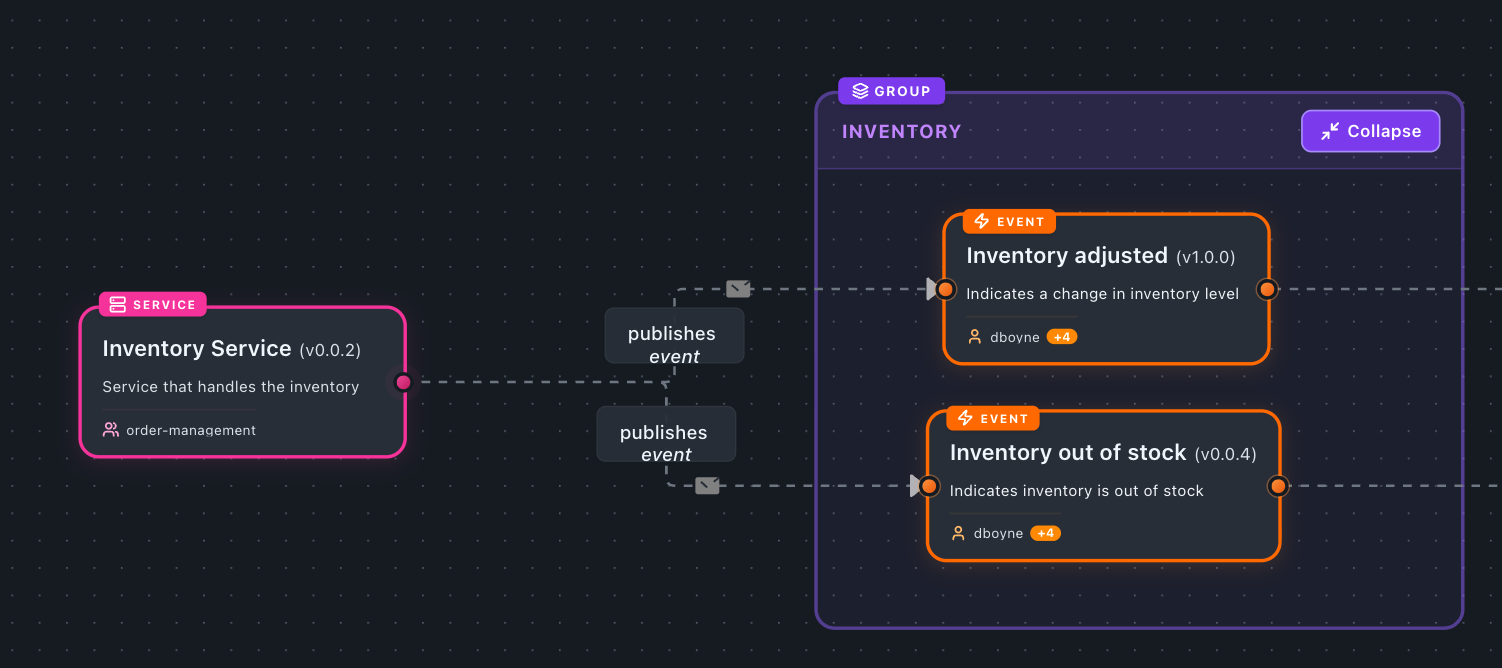
Click the group node to expand it. The expanded view shows each individual message inside a container, along with the full downstream graph — channels the messages route to and any connected producer or consumer services. This is the same graph that would appear if the messages were ungrouped.
Click Collapse to return to the compact group node.
Combining groups with channels
Groups work with channel routing (to and from fields). When a grouped message defines a channel, the expanded view will show the correct channel path for each message.
---
id: WarehouseService
version: 1.0.0
name: Warehouse Service
sends:
  - id: ShipmentDispatched
    version: 1.0.0
    group: Shipping
    to:
      - id: shipping-events-topic
  - id: ShipmentFailed
    version: 1.0.0
    group: Shipping
receives:
  - id: PickRequested
    version: 1.0.0
    group: Picking
    from:
      - id: warehouse-commands-queue
---
Tips
- Group names are per-service — the same group name on different services creates separate group nodes.
- Mix grouped and ungrouped — not every message needs a group. Ungrouped messages render as individual nodes as usual.
- Groups work for events, commands, and queries — any message type can be grouped.