# Creating data products
Copy as Markdown[View as Markdown](/docs/development/guides/data-products/adding-data-products.md)
***
**Added in** `eventcatalog@3.8.0`
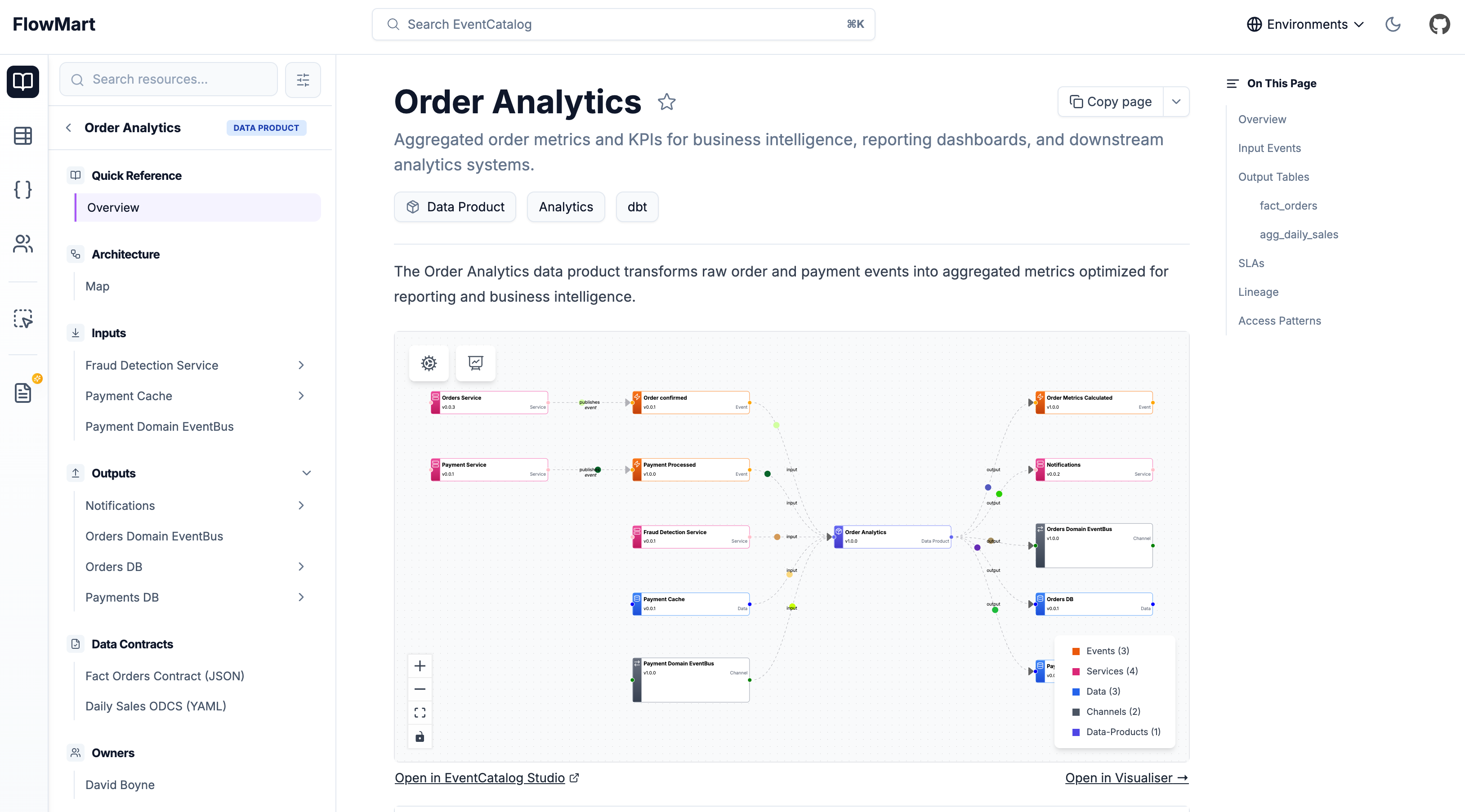
Data products document analytical datasets that transform operational (e.g databases, messages, channels) data into insights. Adding a data product helps teams understand data lineage, contracts, and consumption patterns.
### What do data products look like?[](#what-do-data-products-look-like "Direct link to What do data products look like?")
## Creating a data product[](#creating-a-data-product "Direct link to Creating a data product")
Create a new folder called `data-products` and add your data product files to it.
* `**/data-products/{DataProduct Name}/index.mdx`
* (example `**/data-products/OrderAnalytics/index.mdx`)
* (example `**/data-products/PaymentMetrics/index.mdx`)
Data products can be defined in any folder. This lets you group data products by domains, teams, or business areas.
### Creating the data product file[](#creating-the-data-product-file "Direct link to Creating the data product file")
Within your data product folder create an `index.mdx` file.
The `index.mdx` contents split into two sections: **frontmatter** and **markdown content**.
Here is an example data product markdown file. [You can read the API docs for the data product frontmatter API](/docs/api/data-product-api.md).
/data-products/OrderAnalytics/index.mdx (example)
```
---
# Unique identifier for your data product
id: order-analytics
# Display name rendered in EventCatalog
name: Order Analytics
# Version of the data product
version: 1.0.0
# Brief summary of what this data product provides
summary: Aggregated order metrics and KPIs for business intelligence
# Optional owners (references teams or users)
owners:
- dboyne
# Optional badges for categorization
badges:
- content: Analytics
backgroundColor: purple
textColor: purple
- content: dbt
backgroundColor: orange
textColor: orange
# Input dependencies (events, services, data stores)
inputs:
- id: OrderConfirmed
# version is optional for all inputs
version: 1.0.0
- id: PaymentProcessed
- id: payment-cache
# Output data products (events, services, data stores)
outputs:
- id: OrderMetricsCalculated
# version is optional for all outputs
version: 1.0.0
- id: NotificationService
- id: orders-db
contract:
path: fact-orders-contract.json
name: Fact Orders Contract
type: json-schema
---
## Overview
The Order Analytics data product transforms raw order and payment events into aggregated metrics optimized for reporting and business intelligence.
Rest of your markdown....
```
**That's it!**
Once you add your data product to EventCatalog, it will appear in the catalog.
With **data products** you can write any Markdown and it will render on your page. Every data product gets its own page.
Within your markdown content you can use [components](/docs/development/components/using-components.md) to add interactive elements.
You can [see examples on GitHub](https://github.com/event-catalog/eventcatalog/tree/main/examples/default).
## Directory structure[](#directory-structure "Direct link to Directory structure")
Data products can be placed anywhere in your catalog:
```
/data-products
/OrderAnalytics
index.mdx
fact-orders-contract.json
/PaymentMetrics
index.mdx
payment-contract.json
/domains
/E-Commerce
/data-products
/CustomerSegmentation
index.mdx
```
## Using the NodeGraph component[](#using-the-nodegraph-component "Direct link to Using the NodeGraph component")
The `` component visualizes relationships between your data product and its inputs/outputs.
```
```
This component automatically renders based on the `inputs` and `outputs` defined in your frontmatter.
## Custom icon[](#custom-icon "Direct link to Custom icon")
**Added in** `eventcatalog@3.28.1`
Set `styles.icon` in your frontmatter to display a custom icon on the data product. The icon appears in the visualiser node, sidebar navigation, page header, and search results.
/data-products/OrderAnalytics/index.mdx (example)
```
---
id: order-analytics
name: Order Analytics
version: 1.0.0
styles:
icon: /icons/analytics/clickhouse.svg
---
```
The value can be a path to a file in your catalog's `public/` folder (e.g. `/icons/analytics/clickhouse.svg`) or an absolute URL (e.g. `https://cdn.simpleicons.org/snowflake`).
## Next steps[](#next-steps "Direct link to Next steps")
* [Define inputs and outputs](/docs/development/guides/data-products/inputs-and-outputs.md)
* [Add schema contracts](/docs/development/guides/data-products/contracts.md)
* [Add data products to domains](/docs/development/guides/data-products/adding-to-domains.md)